

Appearance
Add an Agency Account
Run campaigns for customers as an agency from the same login you use as an affiliate
If you send traffic to Linkrunner customers as an affiliate and also run campaigns for them as an agency, you can do both from one login. You get a second workspace for the agency work and switch between the two from the project picker.
You need an approved affiliate account and a customer who wants you to run their campaigns. Agency accounts start with a customer invitation, so there is no sign up form.
Affiliate and agency accounts stay separate
| Affiliate account | Agency account | |
|---|---|---|
| What it is for | Traffic from your own network | Campaigns you run inside a customer's project |
| Attribution | Installs credited to your affiliate network | Campaigns created by your agency |
| Customer access | Set on your affiliate connection | Set on your agency connection |
| Team | Members of your affiliate workspace | Members of your agency workspace |
A customer who works with you both ways sees two connections and gives each its own access. Your affiliate and agency data are never merged.
1. Ask a customer to invite you as an agency
Ask the customer to invite you from Settings → Members → Invite Agency → Invite them by email. They should use the same email address you sign in with as an affiliate. See Invite an agency for their steps.

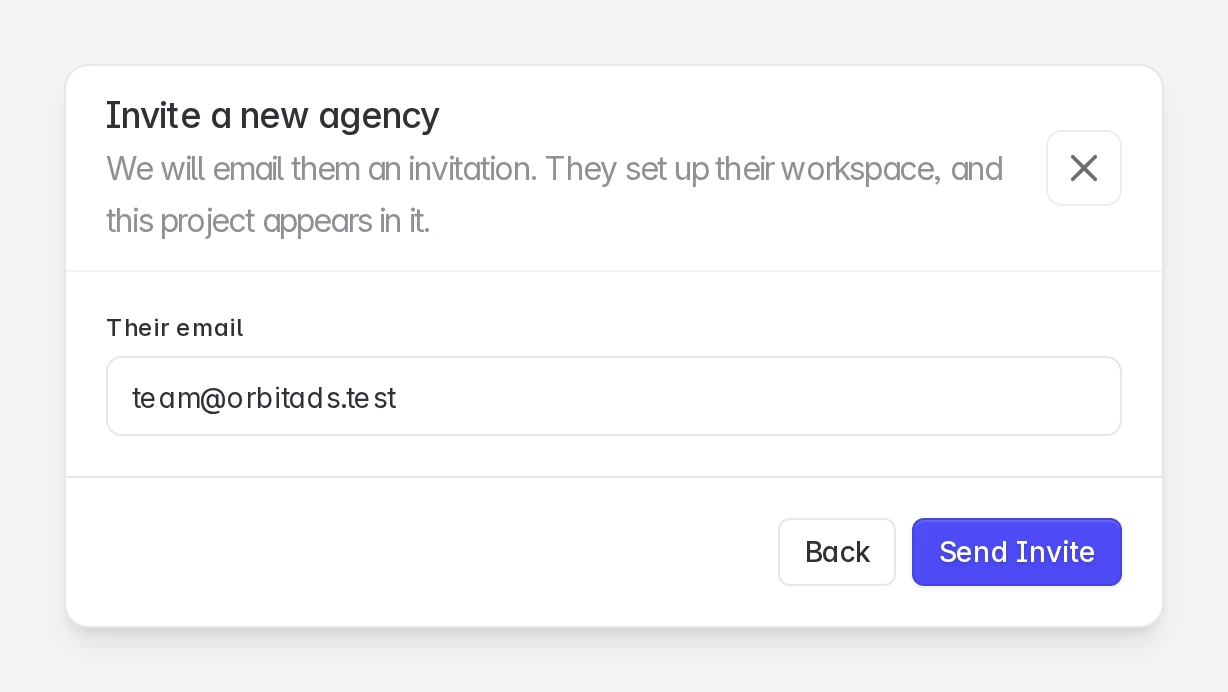
If you are not working with a customer as an agency yet, contact support@linkrunner.io and we can set up your agency account.
2. Open the invitation
Open the link in the invitation email. If you are already signed in to Linkrunner, you go straight to the agency setup. Otherwise sign in with the invited address first.
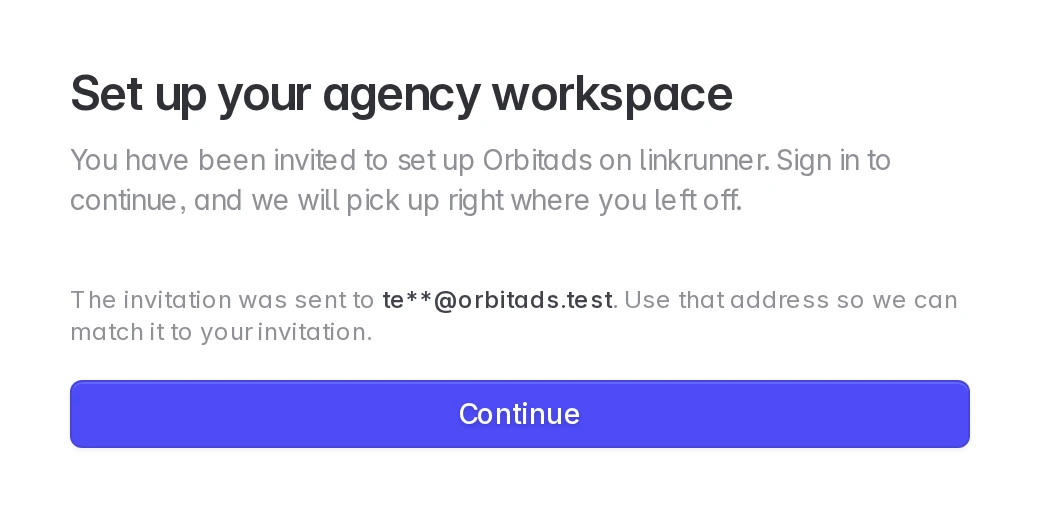
3. Add your agency details
Upload a logo, enter your agency name and a description, then add your website and contact email. Click Complete setup. The fields are the same as for a new agency, see Set up your agency workspace.
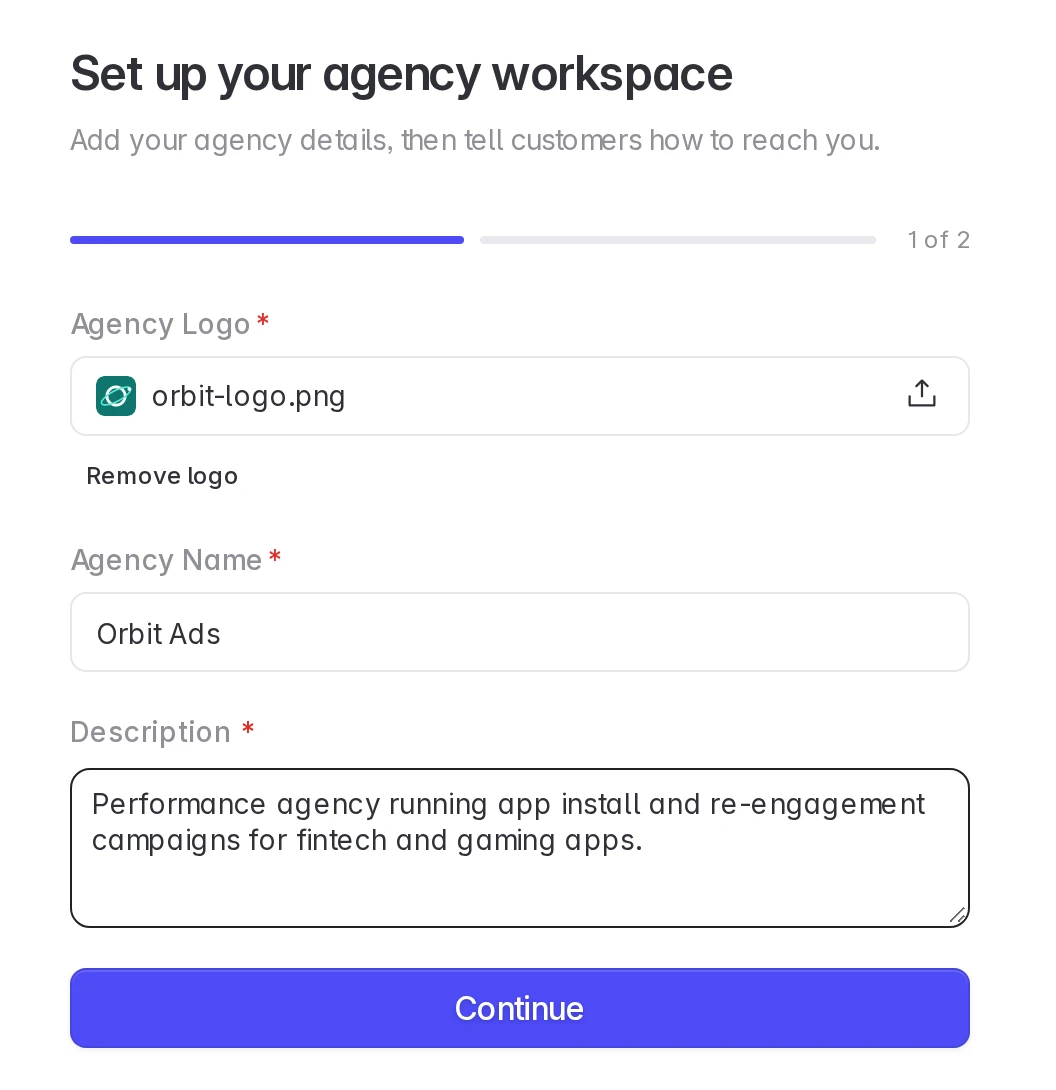
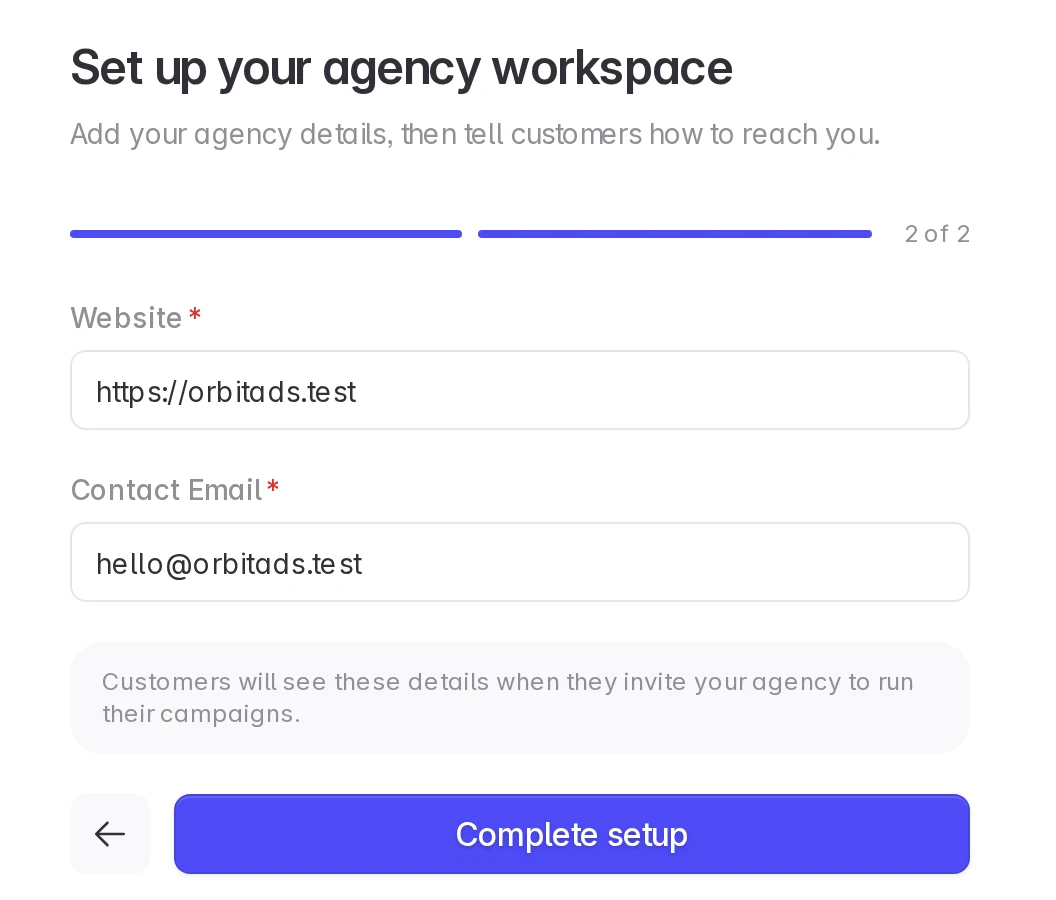
4. Wait for review
Linkrunner reviews the new agency workspace. Your affiliate account keeps working in the meantime. Click Back to your affiliate account to return to it.
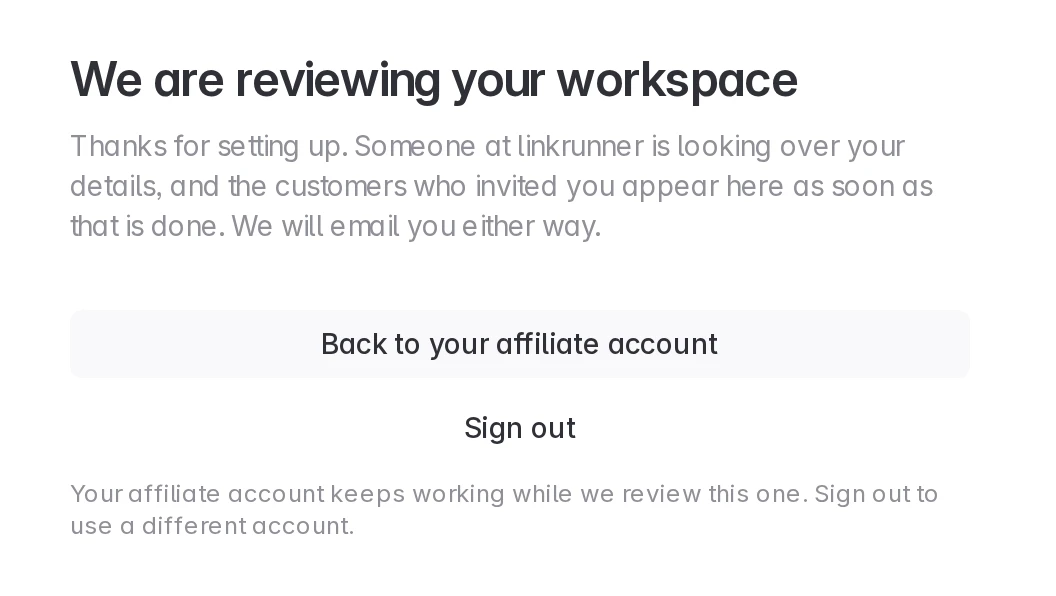
You get an email when the review is done.
5. Switch between your accounts
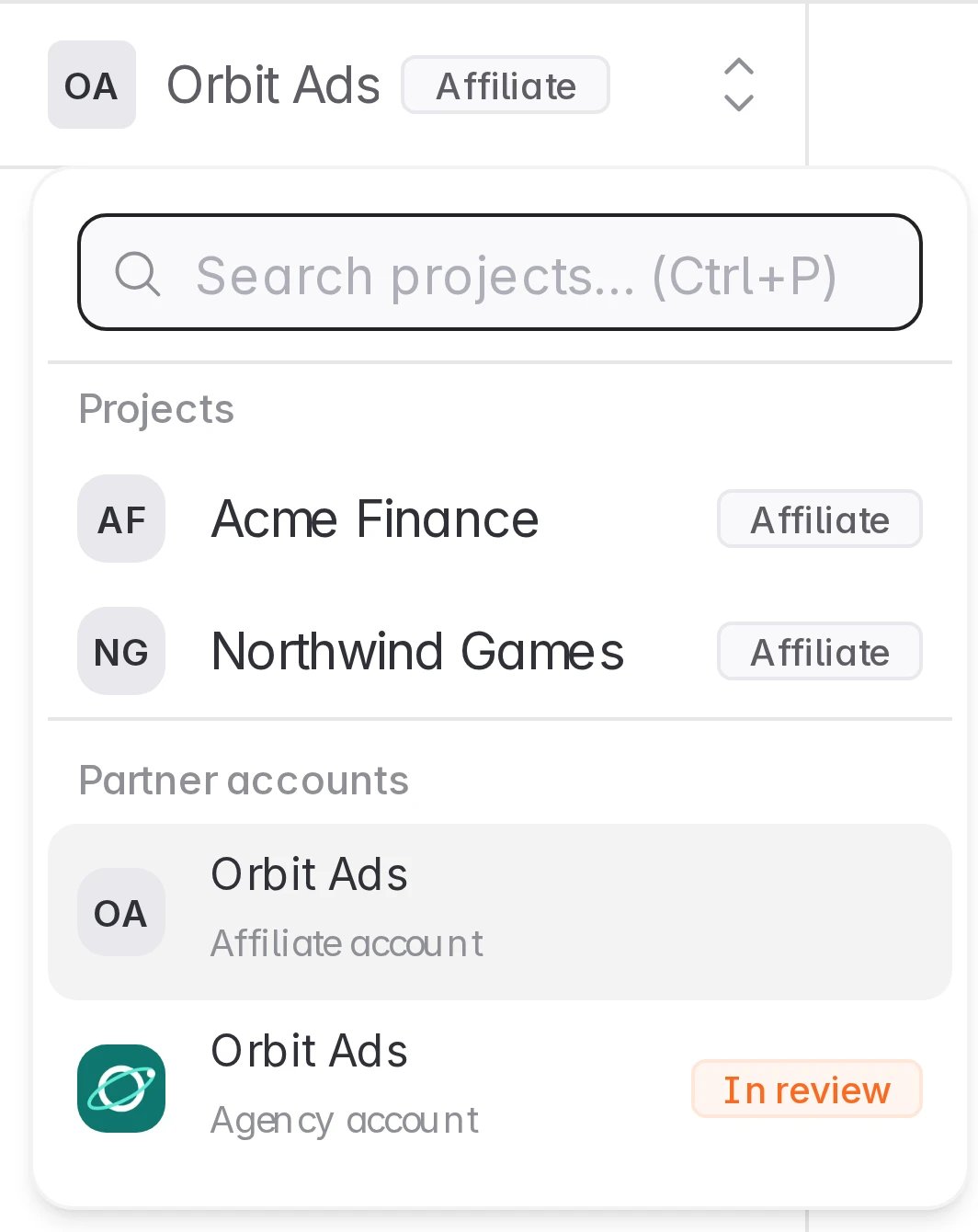
Open the project picker at the top of the sidebar. Partner accounts lists both workspaces. Click one to open it. While the agency workspace is under review, it shows In review.
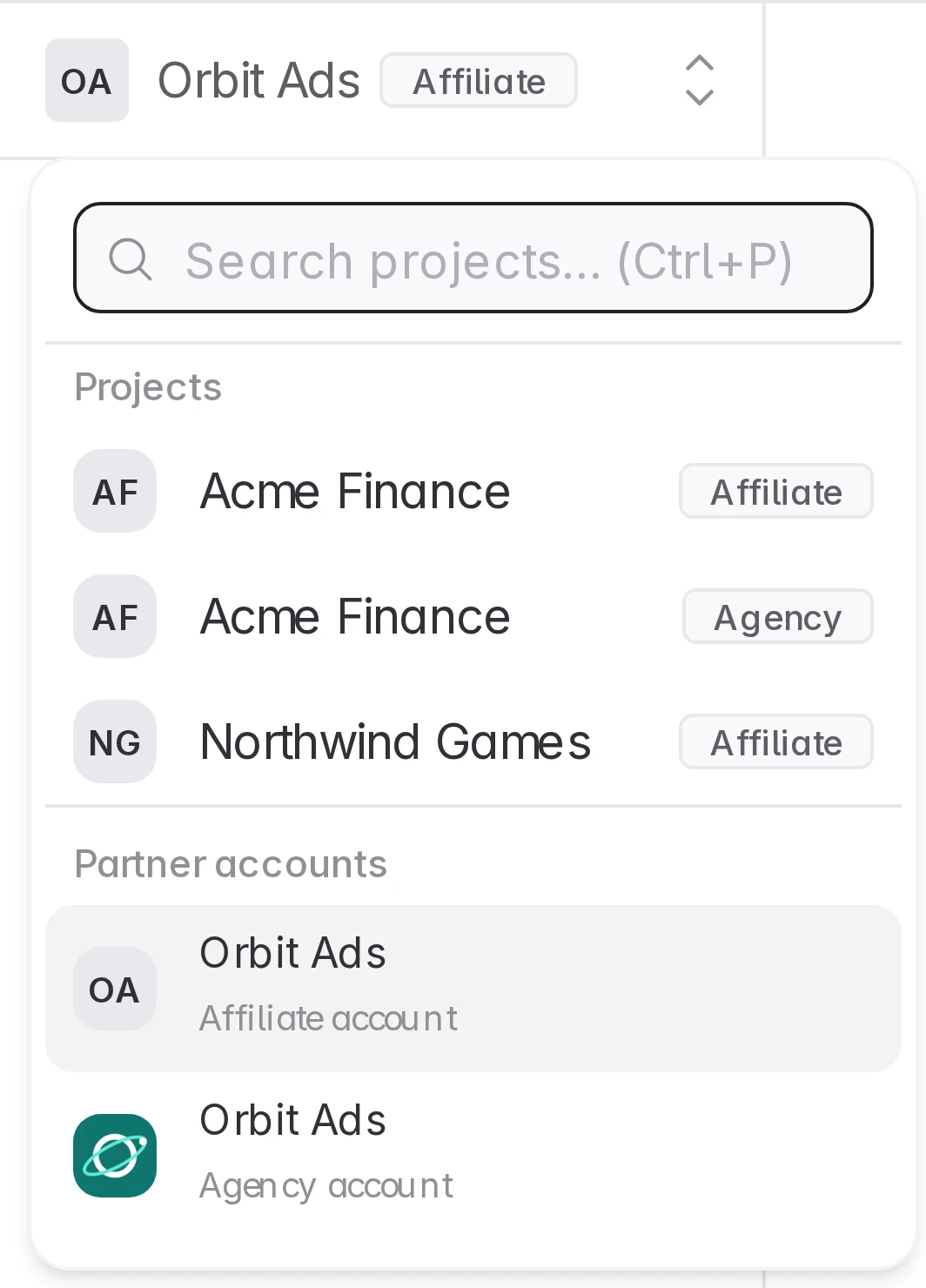
When a customer has connected both your affiliate and your agency to the same project, that project appears twice in the picker, once tagged Affiliate and once tagged Agency. Each row opens the project with that account's access.
Troubleshooting
"This invitation belongs to a different email". The invitation was sent to another address. Ask the customer to invite the email you sign in with, or sign out and sign in with the invited address.
The invitation link expired. Invitations are valid for 14 days. Ask the customer to send a new one.
Your agency workspace was not approved. Your affiliate account is not affected. Contact support@linkrunner.io if you think it is a mistake.
Need help? Contact support@linkrunner.io