

Appearance
Invite an Agency
Bring an agency onto your project so they can create and measure campaigns for you
Engage an agency when you want someone outside your company to run campaigns in your Linkrunner project. They get a workspace of their own rather than a seat in your account, so you never share your team's access with them.
Only project admins can invite an agency.
1. Open the Members page
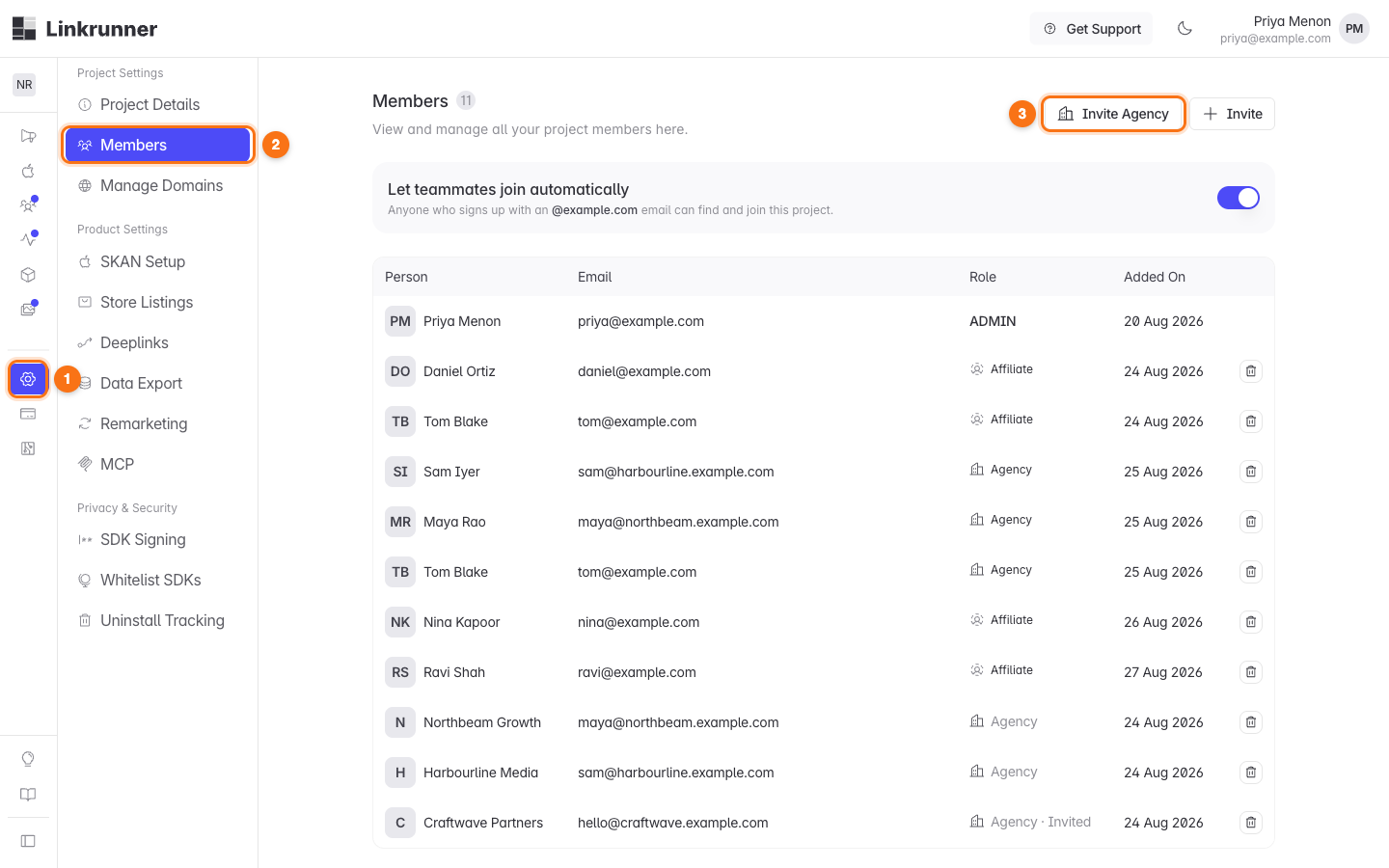
Open Settings (1), go to Members (2), then click Invite Agency (3).
Integrations → Agencies does the same job from the other side of the product, cards instead of a list. See From the Integrations page.
2. Pick an agency, or invite a new one
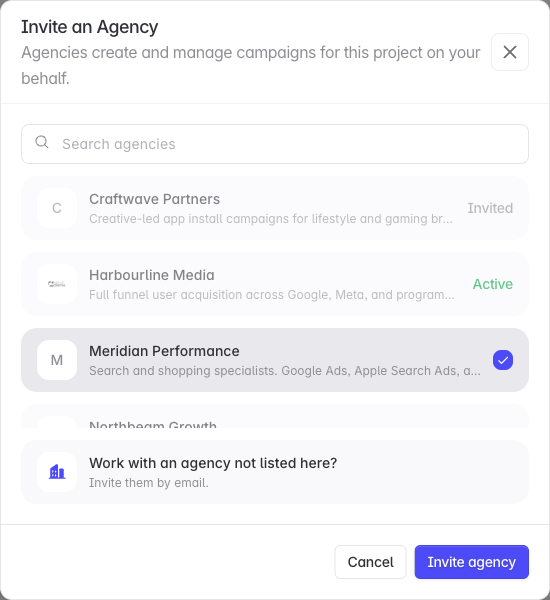
The list holds every agency already set up on Linkrunner. Search by name, description, or website, tick one or more, then click Invite agency.
An agency you have already engaged shows Invited or Active instead of a checkbox, so it cannot be invited twice.
3. Track the engagement
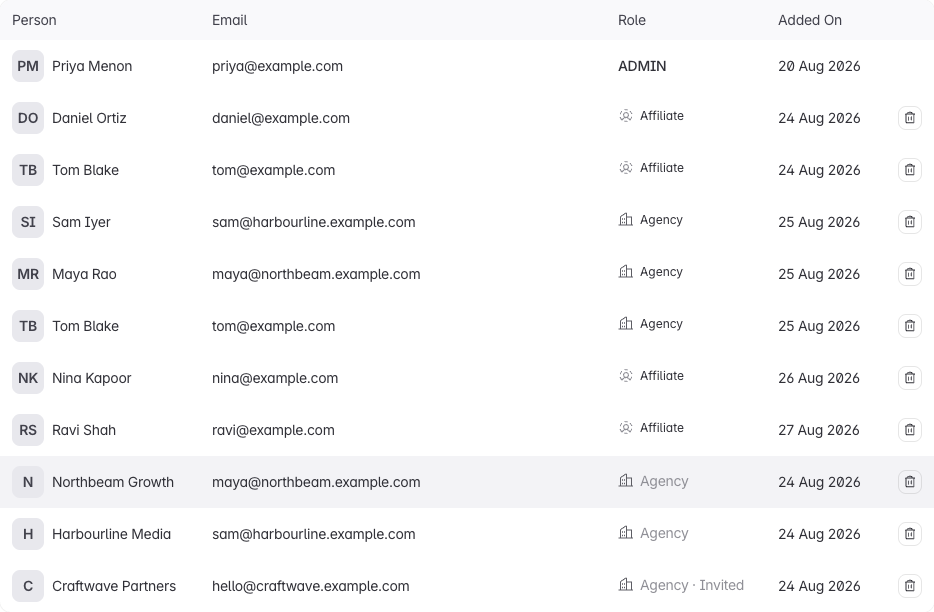
Agencies appear in the members table underneath your people, marked Agency.
| Label | Meaning |
|---|---|
| Agency · Invited | Nobody at the agency has accepted yet, or their workspace is still being reviewed by Linkrunner. |
| Agency | Active. They have access to this project. |
| Agency · Suspended | Linkrunner has suspended the workspace. Their access is paused, and your engagement is kept. |
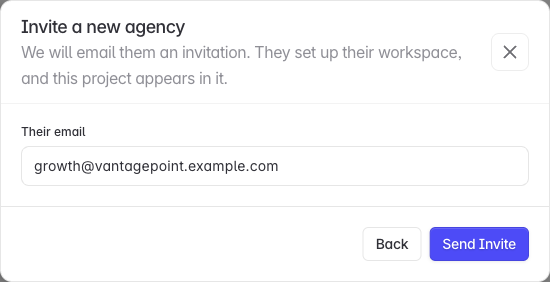
An agency invited by email needs to complete its workspace setup and pass Linkrunner's review before it becomes active. A new agency will not have access on the day you invite it.
4. Give them access
An active engagement grants nothing on its own. Click the sliders icon on the agency's row to choose the screens, actions, and data they reach. Until you do, they see an access message instead of your project.
Connecting an agency from Integrations → Agencies opens the same panel the moment the engagement is created. Either way the sliders icon on this page reopens it, so what you decided is never out of reach.
Control agency access covers each switch and what the agency sees when one is off.
From the Integrations page
Everything above has a second home: Integrations → Agencies lists the same agencies as cards.
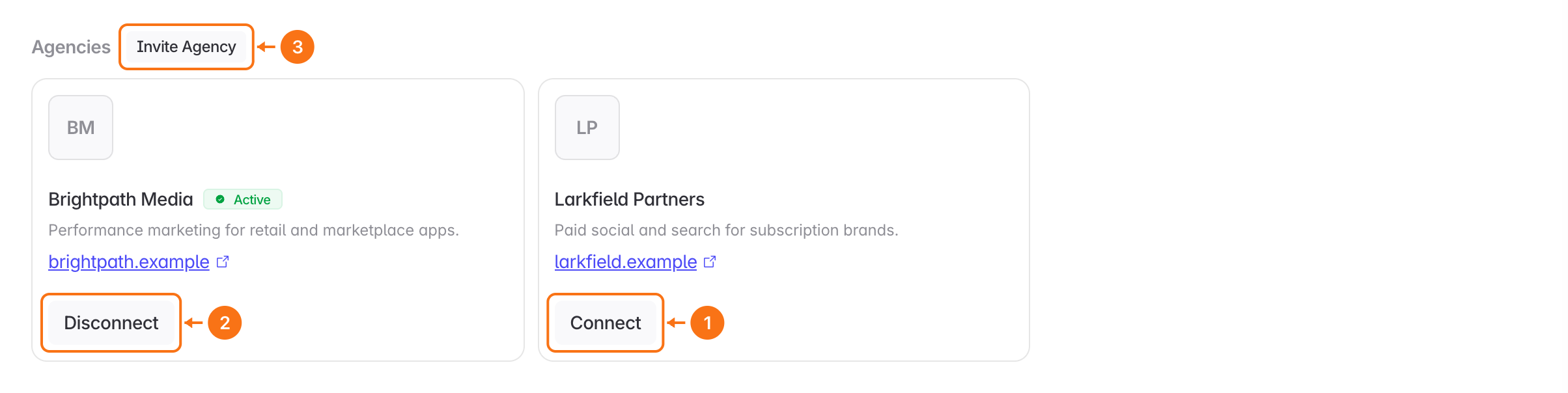
| Control | What it does |
|---|---|
| Connect (1) | Engages an agency already on Linkrunner, the same as ticking it in the directory. The access panel opens straight away, so you choose what they see without leaving the page. |
| Disconnect (2) | On a card you have already engaged. Offers to limit their access first, see below. |
| Invite Agency (3) | Sends an email invitation to an agency that is not on Linkrunner yet, the same invitation as step 2. |
A card you have engaged shows Active, or Invited until someone there signs up, so the section doubles as the list of who you work with.
Invite one that is not on Linkrunner yet
Invite Agency (3) opens straight to the email step. There is no list to pick from here, because the list is the cards you are already looking at.
- Click Invite Agency above the cards.
- Enter the address of whoever should own the agency's workspace.
- Click Send Invite.
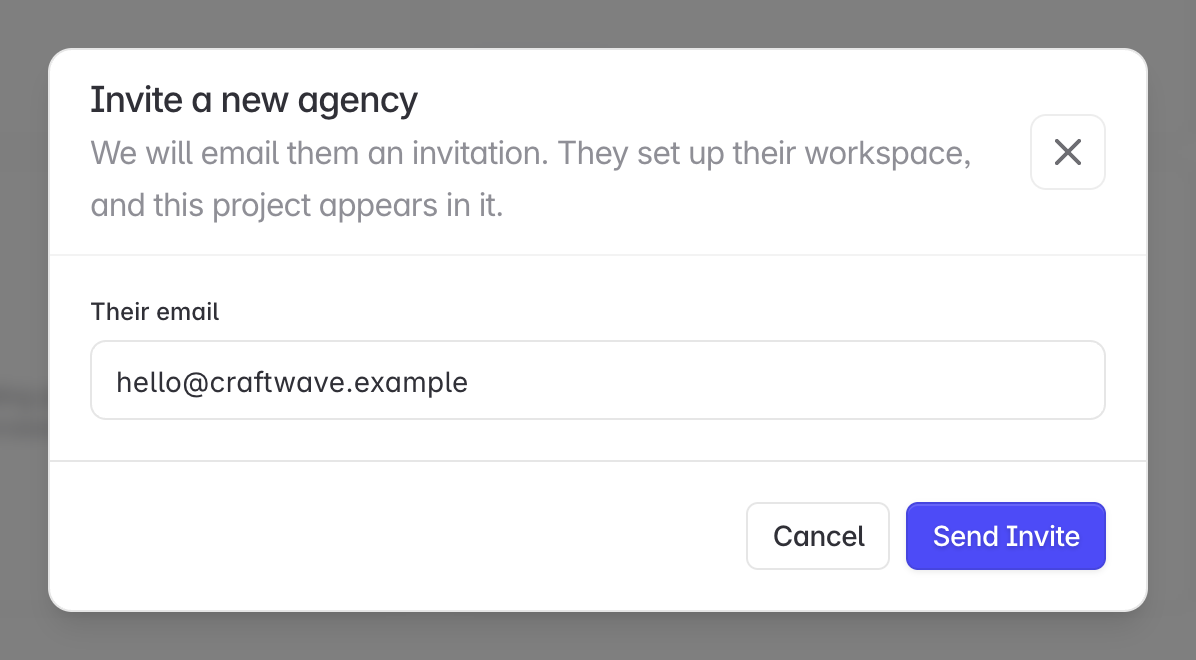
They set the workspace up and invite their own team, and this project appears in it once Linkrunner has reviewed it. Same invitation, and the same wait, as step 2.
End an engagement
Click the remove icon on the agency's row, then End Engagement.
Everyone at that agency loses access to this project immediately. The campaigns they created stay with your project, along with all of their historical data. The agency's other customers are unaffected.
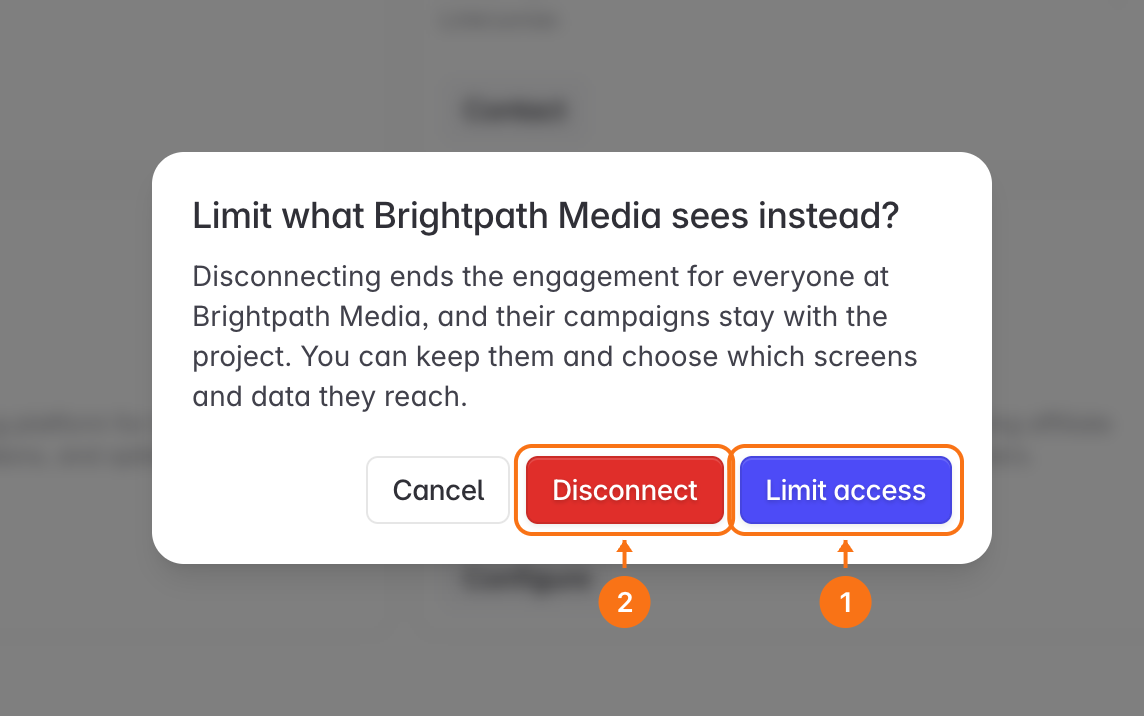
On the agency's card under Integrations → Agencies, Disconnect asks first whether you would rather narrow what they see. Limit access (1) opens the access panel, and Disconnect (2) ends the engagement as above.
Troubleshooting
The Invite Agency button is missing. You need to be an admin on the project.
"The agency list could not be loaded for this project". You are viewing the project as a partner rather than as an admin. Agencies are managed by a project admin.
The invitation was refused as a duplicate. That address already belongs to an agency, or already has a pending invitation for this project. The error message names the company involved.
The agency says they cannot see a screen. They only get what you have granted them, and a new engagement starts with everything off. Open Settings → Members, click the sliders icon on their row, and turn on what they need. See Control agency access.
Need help? Contact support@linkrunner.io