

Appearance
Control Agency Access
Choose which screens, actions, and data an agency can reach inside your project
An engaged agency starts with nothing. You decide, per agency, which screens they open, which actions they take, and how much of your project they measure.
The panel comes to you when you connect an agency, and the sliders icon on their row in Settings → Members opens it again whenever you want to change your mind.
Only project admins can change agency access.
1. Open the access panel
Open Settings → Members. Agencies appear underneath your people, marked Agency. Click the sliders icon (1) on the agency's row.
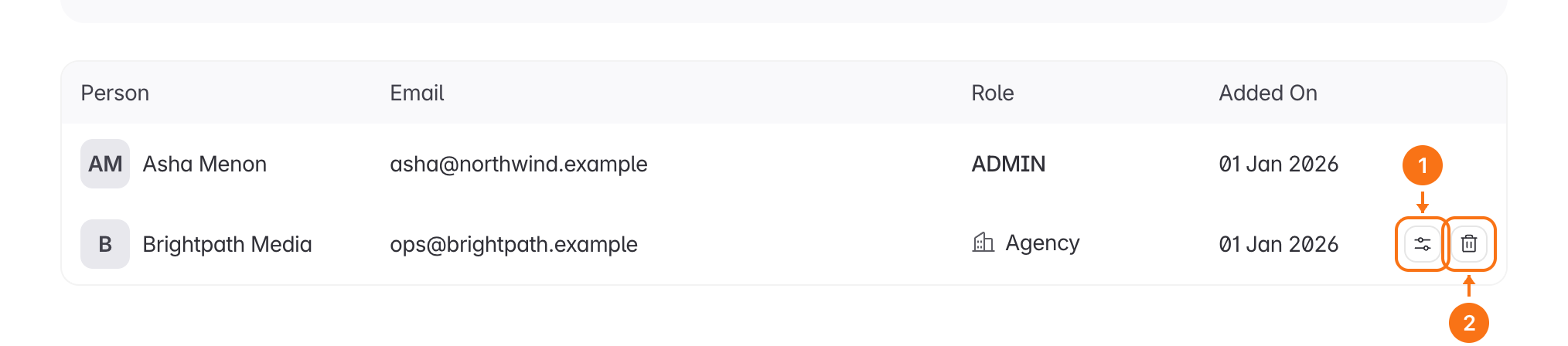
The icon next to it, the bin (2), ends the engagement. See Invite an Agency for that.
The panel also opens by itself the moment you connect an agency from Integrations → Agencies, so a new engagement never waits for someone to come back to it. Invite an Agency covers that route.
2. Choose their screens and actions
The top half of the panel is one switch per screen or action. A new engagement has all of them off.
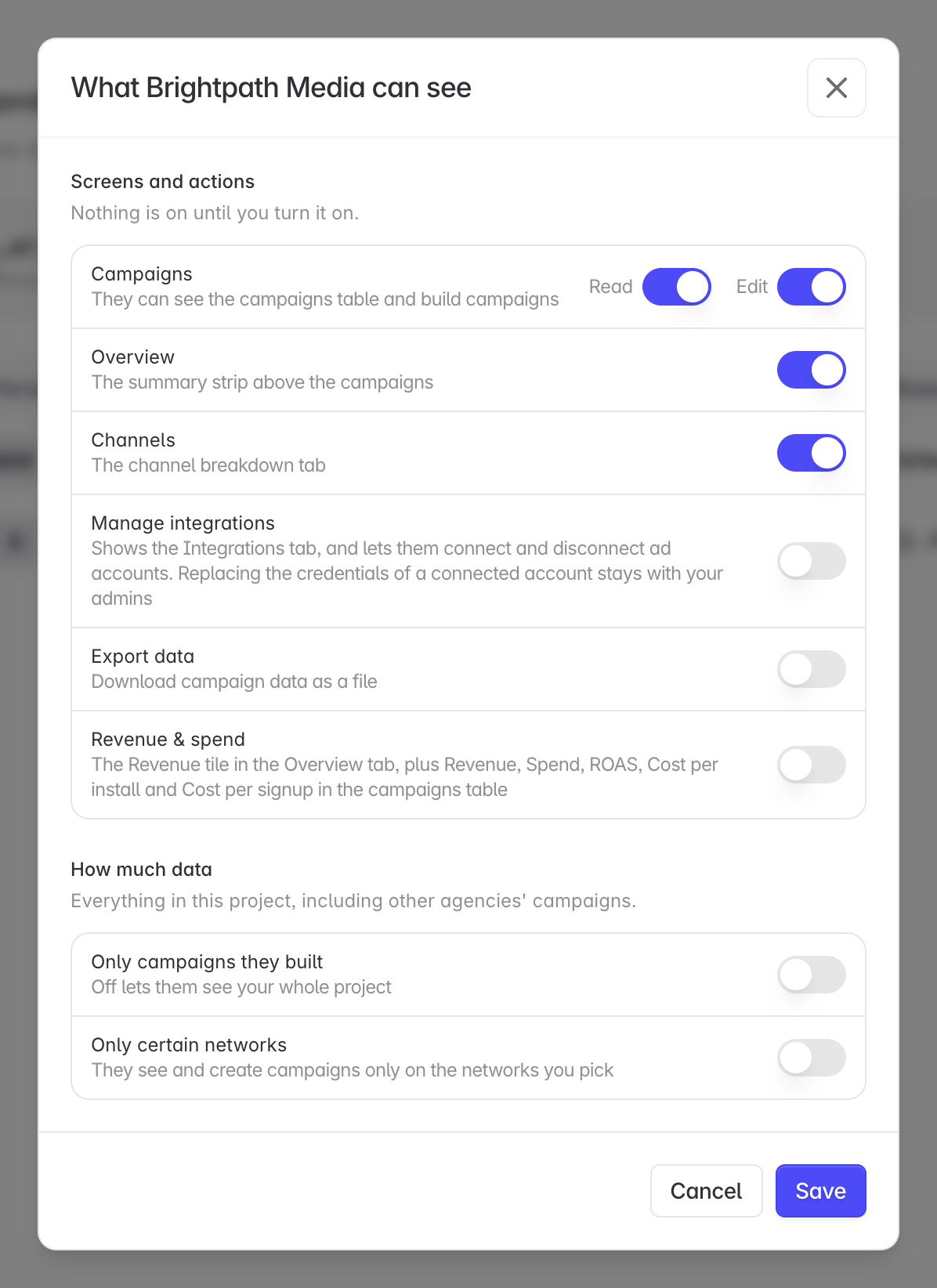
| Switch | What it gives them |
|---|---|
| Campaigns · Read | The campaigns table. Everything below depends on this. |
| Campaigns · Edit | Creating and changing campaigns. Turning Edit on turns Read on. |
| Overview | The summary strip above the campaigns. |
| Channels | The channel breakdown tab. |
| Manage integrations | The Integrations tab, and connecting and disconnecting ad accounts. Replacing the credentials of an account that is already connected stays with your admins. |
| Export data | Downloading campaign data as a file. |
| Revenue & spend | The Revenue tile in Overview, plus the Revenue, Spend, ROAS, Cost per install, and Cost per signup columns in the campaigns table. |
Campaigns · Read is the one that governs the rest. With it off, the agency has no campaigns screen to put anything on, so every switch below it is disabled and the agency sees an access message instead of your project.
3. Choose how much data
The bottom half narrows what the granted screens are allowed to show.
Only campaigns they built. On, the agency sees and measures only the campaigns their own agency created. Off, they get every campaign in the project, including ones your team and your other partners built.
Only certain networks. On, the agency sees and creates campaigns only on the networks you tick. Pick at least one, or turn the control off. A restriction with nothing ticked would show them nothing at all, so Linkrunner refuses to save it.
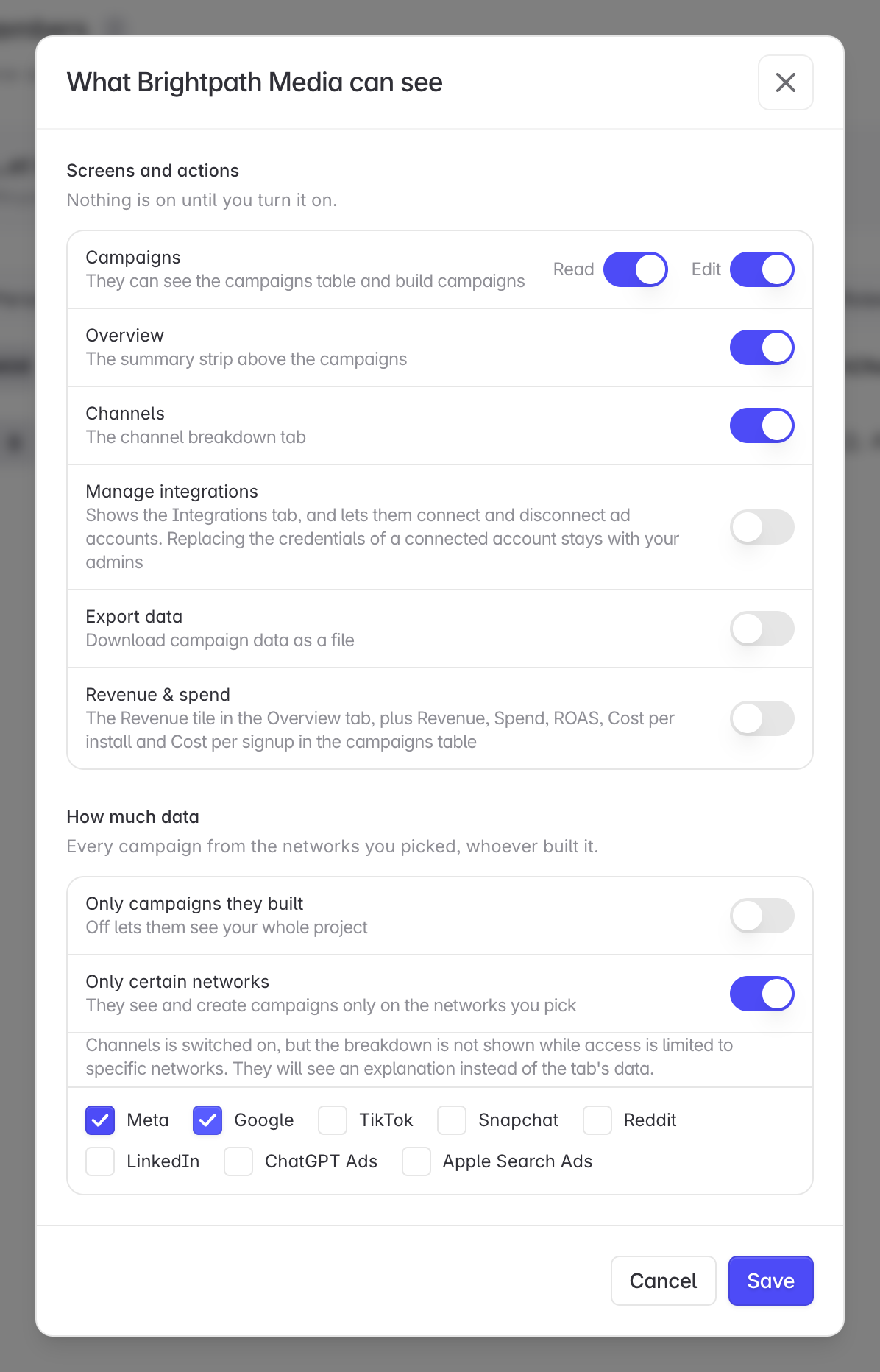
Channels and a network restriction do not combine. The channel breakdown cannot be limited to named networks yet, so an agency with both gets an explanation in the Channels tab instead of the breakdown. The panel says so when you pick the combination. Leave Channels off, or leave the network restriction off, if the tab matters to them.
4. Save
Click Save. The change applies straight away, though an agency with the screen already open needs to refresh it, and a change can take up to 30 seconds to reach every Linkrunner server.
What the agency sees when a switch is off
Nothing is hidden silently. A screen you have not granted tells the agency that the customer has not given them access to it, so they know to ask you. The same holds for a campaign outside the scope you set and for a network you did not tick.
Troubleshooting
The sliders icon is missing from the agency's row. You need to be an admin on the project.
The agency still cannot see a screen you turned on. Ask them to refresh. If it persists, check that Campaigns · Read is on. Every other switch depends on it.
The agency's Channels tab is empty, with an explanation.Only certain networks is on. The channel breakdown is not shown while access is limited to named networks.
The agency sees campaigns your team built.Only campaigns they built is off. Turn it on to limit them to their own work.
Save is greyed out.Only certain networks is on with no network ticked. Tick at least one, or turn the control off.
Need help? Contact support@linkrunner.io