

Appearance
Edit an Agency Campaign
Change the name, deep link and link settings of a campaign in a customer's project
You can change a campaign's name, deep link, link preview, redirects and link options from your agency workspace. The changes apply to the campaign straight away.
Before you start
You need:
- Campaigns → Edit turned on for your agency. It is the same switch that lets you create links. See Ask the customer to turn on link creation.
- A campaign you can see in All Campaigns. By default that is only the campaigns your agency created. If the customer limited you to certain networks, it is only campaigns on those networks.
1. Open the campaign
Open the customer's project
Sign in to Linkrunner Dashboard and pick the customer's project from the project picker.
Open the campaign
Open All Campaigns and click the campaign row.
Click Edit
Edit is at the top right of the campaign panel.

2. Change the details
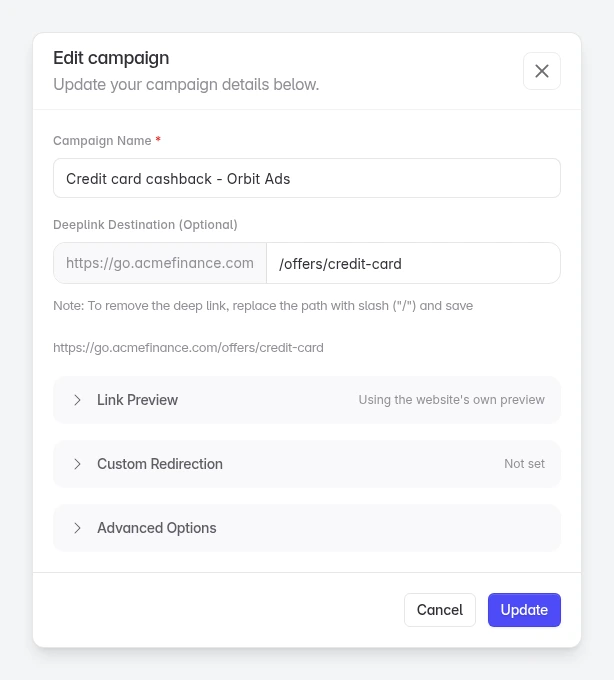
| Field | What it changes |
|---|---|
| Campaign Name | The name you and the customer see. The link stays the same. |
| Deeplink Destination | The app screen people land on, even after they install. To remove it, replace the path with /. |
| Link Preview | The title, description and image shown when the link is shared in chat apps. |
| Custom Redirection | A web page for desktop, Android or iOS users, instead of the normal route. |
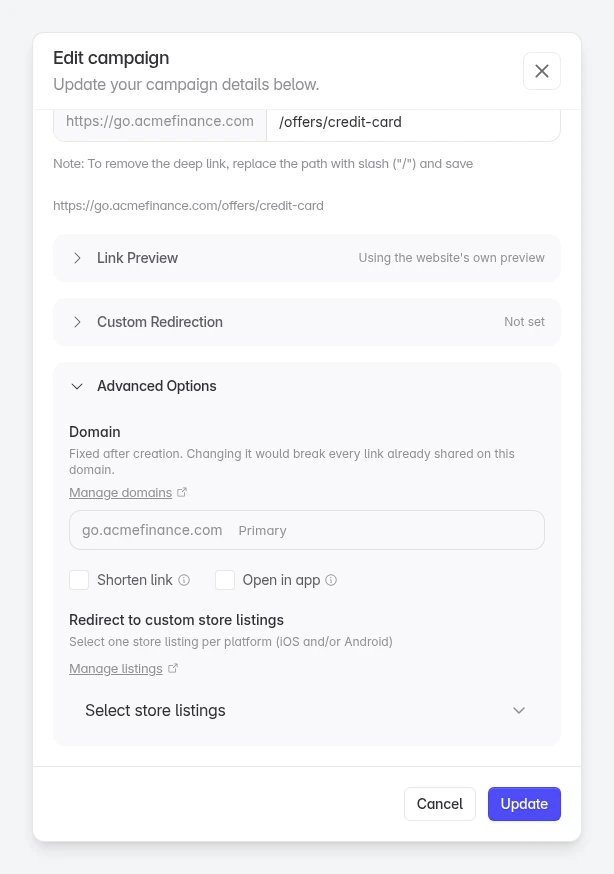
| Advanced Options | Shorten link, Open in app, custom store listings, and a custom channel for links with no ad channel. |
The form uses the same fields as Create Link. See Create a trackable link for what each one does.
The deep link path is part of the campaign link. After you change Deeplink Destination, copy the updated link from the campaign panel before you share it again.
3. Save
Click Update. You see Campaign updated successfully.
What you can't change
| Setting | Why |
|---|---|
| Domain | Fixed after creation. Changing it would break every link already shared on it. Advanced Options shows it greyed out. |
| Ad Channel | Fixed after creation. To credit a different partner, create a new link. |
| Turning the link off, deleting the campaign | Only the customer's team, and only for links with no ad channel. A link credited to a partner can't be turned off or deleted. |
Troubleshooting
"You can't make this change"
Either Campaigns → Edit is off for your agency, or the campaign is outside the networks or campaigns the customer shares with you. Ask the customer to check your agency's access in Settings → Members. See Control agency access.
The campaign is not in your list
By default you only see campaigns your agency created. Ask the customer to turn off Only campaigns they built if you need to edit their other campaigns.
"Deep Link Error"
Enter only the path, for example /offers/credit-card, with no spaces. The domain in front of it is fixed.
You need to switch off or delete the campaign
You may see Delete or Link status in the form, but they don't work for an agency. Ask the customer to do it from their own dashboard. See Deactivate a campaign link.
A link with an ad channel, such as one built for an affiliate, can't be turned off or deleted by anyone. Stop sending traffic to it instead.
Need help? Contact support@linkrunner.io