

Appearance
Create a Trackable Link
Create a link in the dashboard, choose its ad channel, in-app screen and preview, and share it or its QR code.
Give every place you share your app its own Linkrunner link. Each link counts its own clicks, installs, sign-ups and revenue, opens the right screen in your app, and works as a QR code.
Where to use a link
Create one link for each place, so you can compare them.
| Place | Example link ID |
|---|---|
| A creator's post or bio | mia-creator |
| An affiliate partner's site or app | partner-promo |
| A QR code on a poster, in a store or at an event | store-poster |
| Packaging inserts and labels | box-insert |
| An email or newsletter | newsletter-oct |
| SMS and WhatsApp messages | sms-offer |
| A "Get the app" banner on your website | site-banner |
| Podcast show notes and video descriptions | podcast-ep12 |
A link you give to an affiliate partner must be assigned to that partner. Without it, Linkrunner still credits installs to the link but sends the partner no postbacks, so they cannot see or pay out on your conversions. Pick the partner under Ad Channel when you create the link, or assign one later.
Running ads on Meta, Google or another ad network? Those campaigns come in through the network's integration, not a link you create here. See Ad networks.
Before you start
- Set up your Linkrunner subdomain, such as
get.yourapp.com. - To open a specific screen in your app, set up deep linking first.
1. Open Create Link
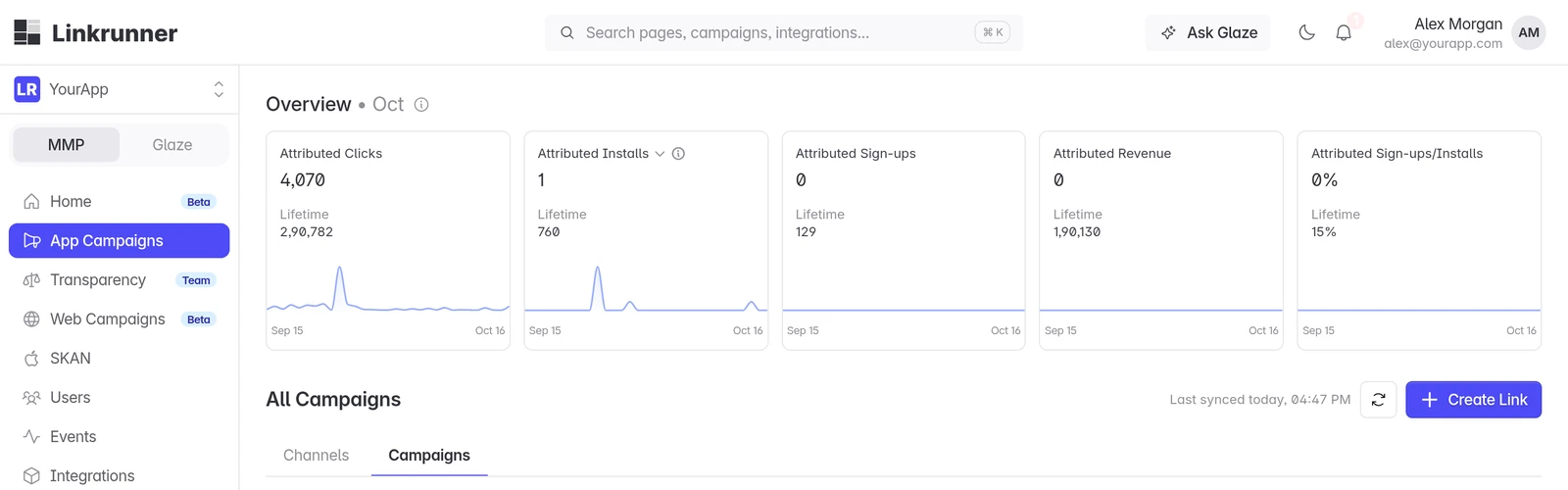
In the dashboard, go to App Campaigns and click Create Link.
2. Name the link
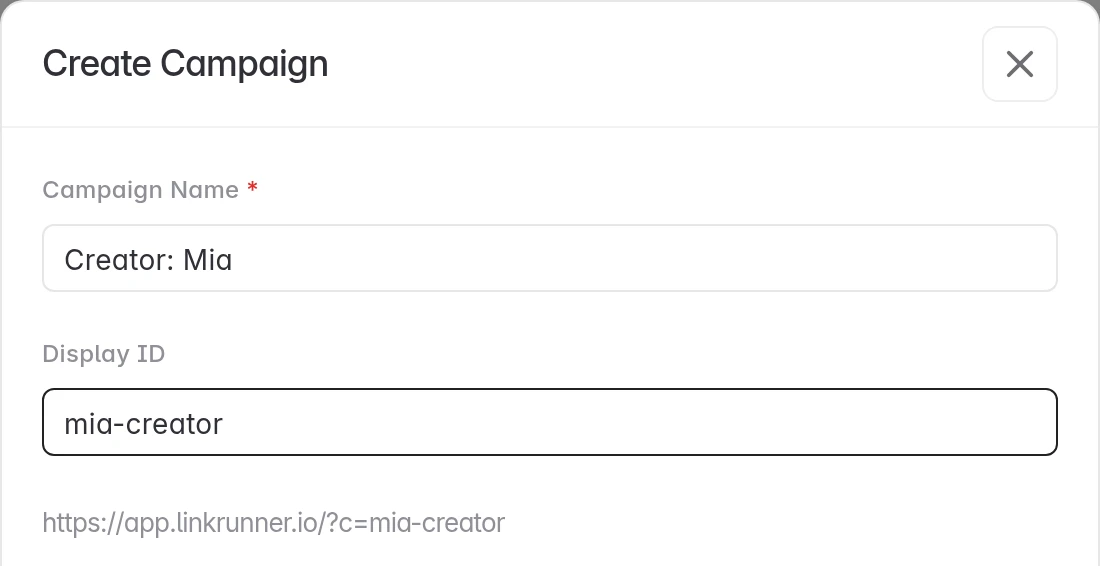
Enter a Campaign Name. This is the only required field.
Display ID is optional. It is the ID at the end of your link (?c=mia-creator), and the full link shows right under it. Use letters, numbers, -, _ and .. Leave it empty and Linkrunner creates a random 6-character ID.
3. Open a screen in your app (optional)
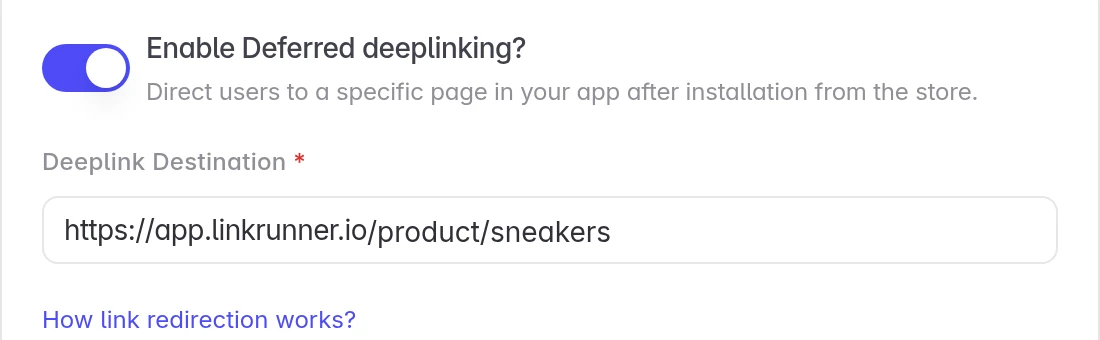
Turn on Enable Deferred deeplinking? and enter the page in Deeplink Destination. Use a link on your Linkrunner domain, for example https://get.yourapp.com/product/sneakers.
People land on that page, even if they install your app first. Your app reads it from getAttributionData(). See Deferred deep linking.
4. Pick the ad channel
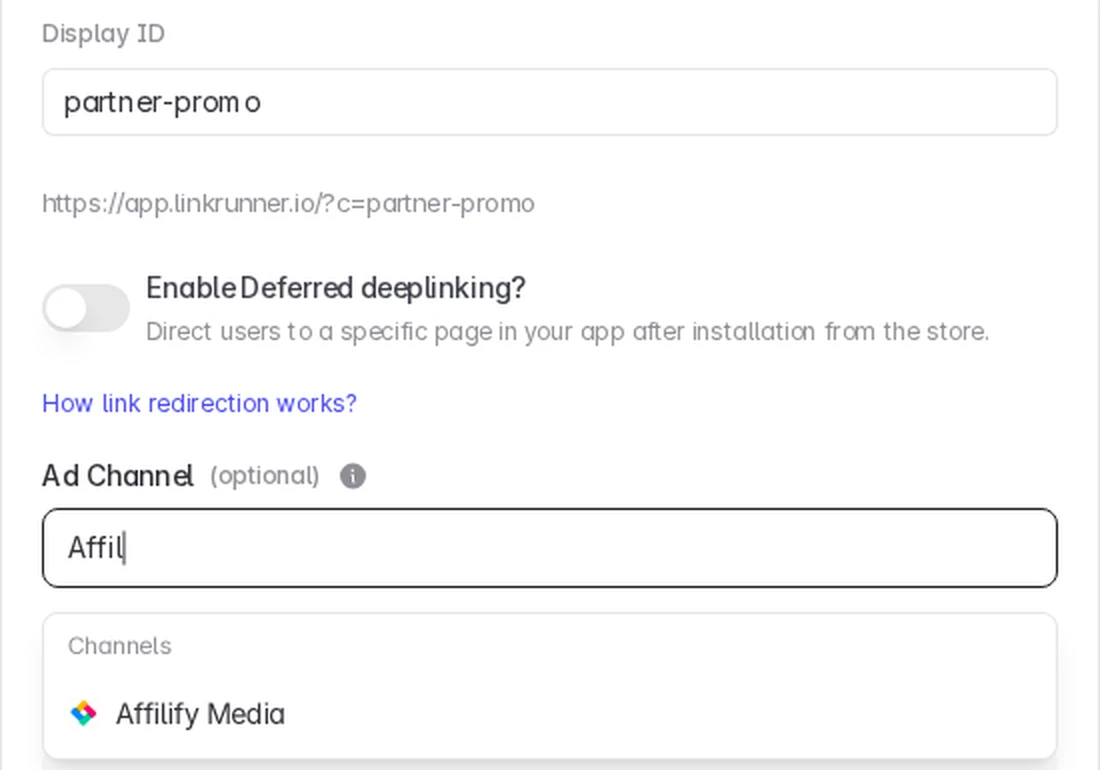
Ad Channel sits right below deep linking. It decides who gets credit for the link.
- For an affiliate partner, start typing the partner's name and pick it. Linkrunner then sends the partner postbacks for installs from this link. Only partners you have connected are listed.
- For your own channels, type a new name, such as
Influencers, to group links together on the dashboard. - Otherwise, leave it empty.
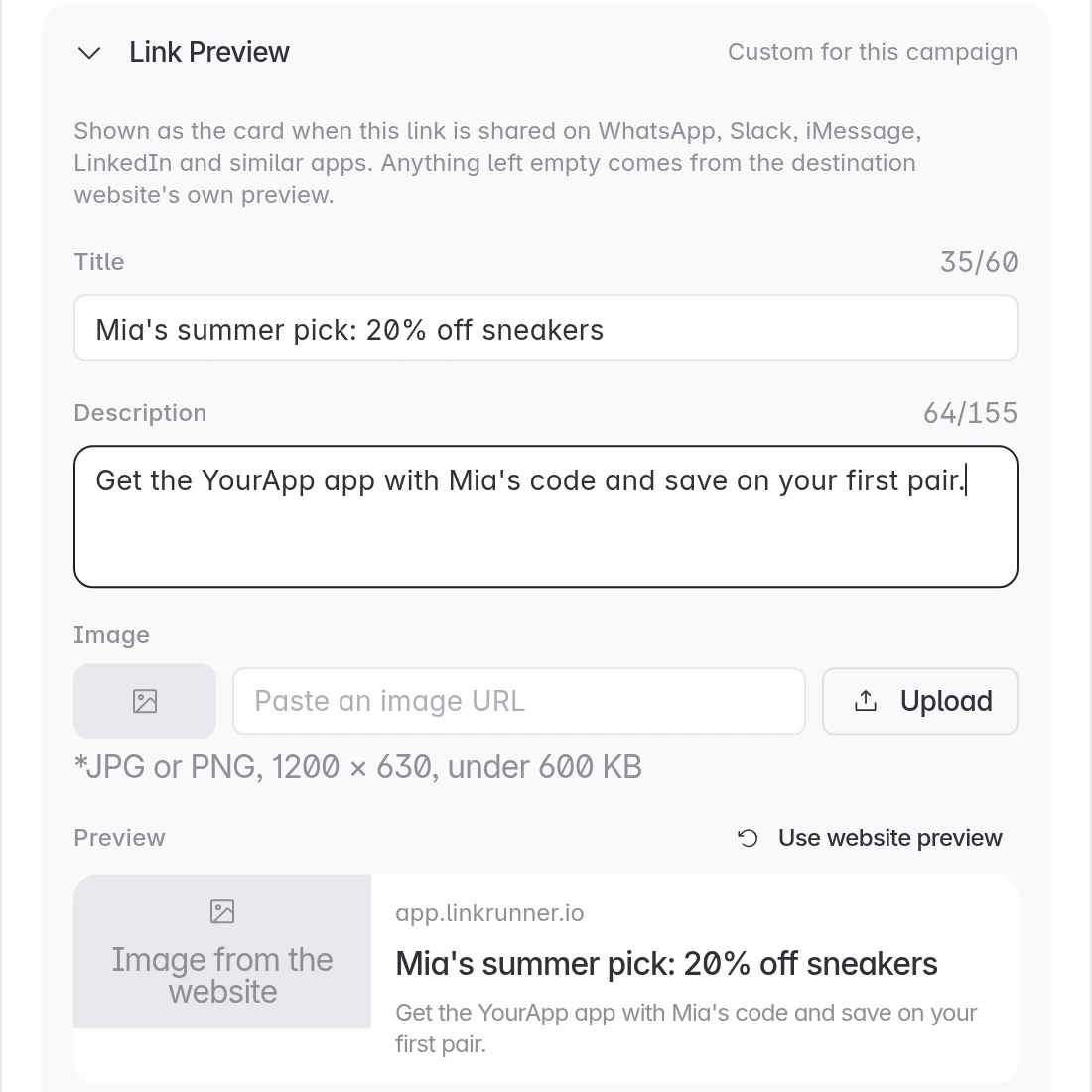
5. Set the link preview (optional)
Open Link Preview to set the card people see when the link is shared on WhatsApp, Slack, iMessage or LinkedIn.
| Field | Limit |
|---|---|
| Title | 60 characters |
| Description | 155 characters |
| Image | JPG or PNG, 1200 × 630, under 600 KB. Paste a URL or upload. |
Anything you leave empty comes from your website's own preview.
6. Choose where people go (optional)
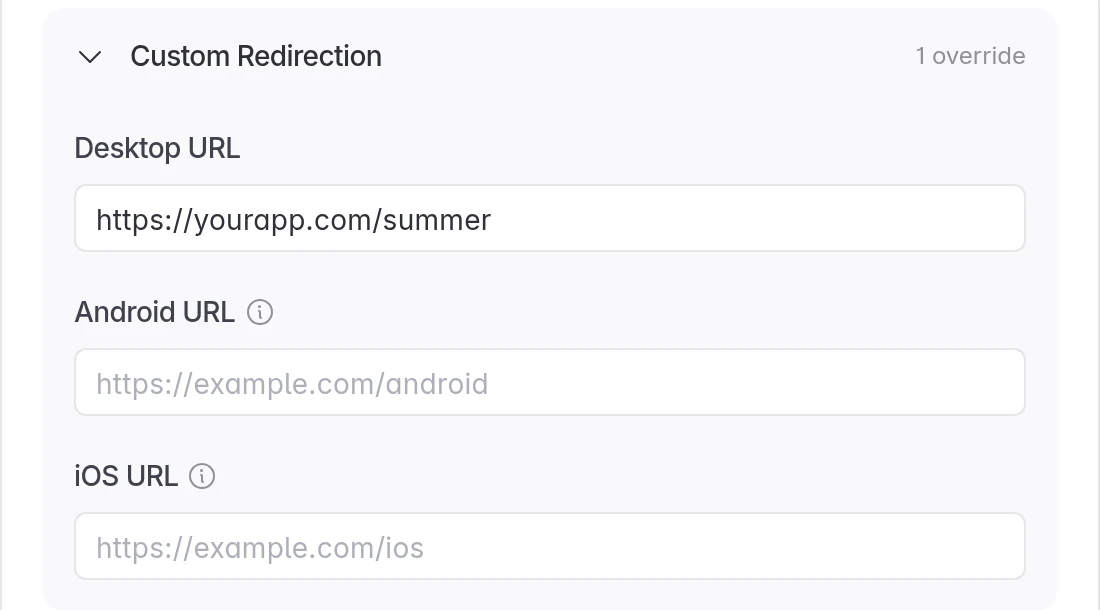
Open Custom Redirection to send people to a web page of your choice.
| Field | Who it applies to |
|---|---|
| Desktop URL | People who open the link on a computer |
| Android URL | Android users, instead of the Play Store |
| iOS URL | iPhone users, instead of the App Store |
Leave a field empty to keep the normal route. See Link redirection.
7. Advanced options, then create
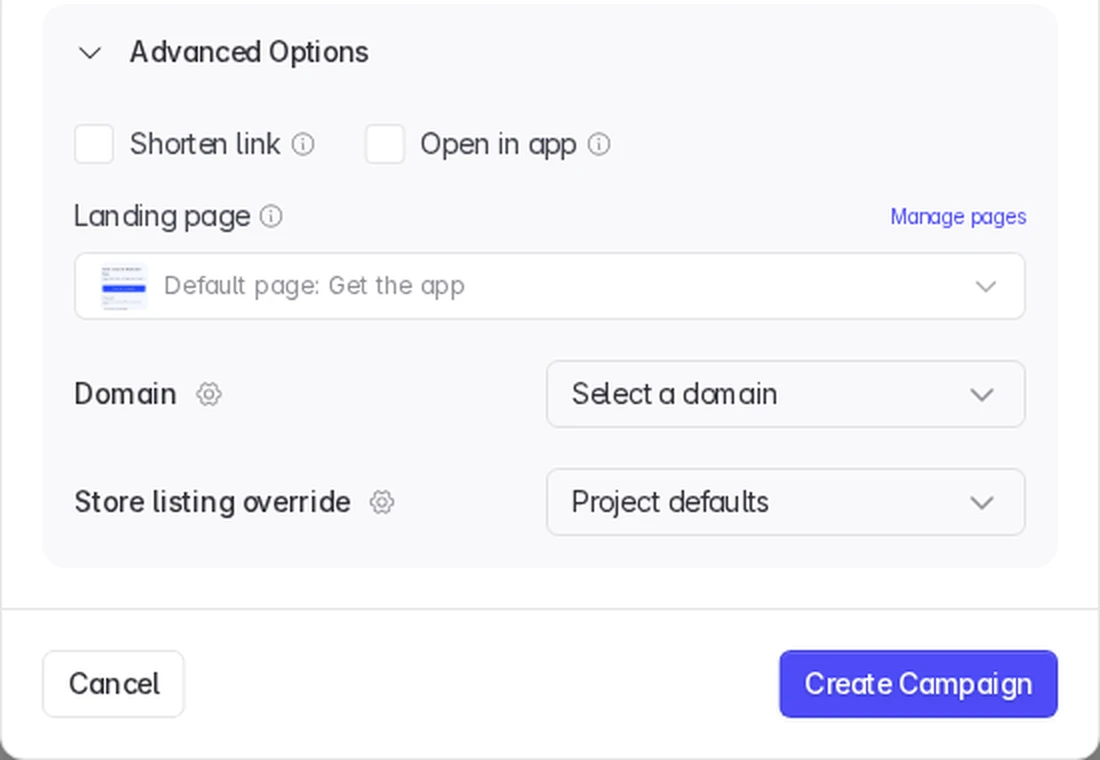
Open Advanced Options:
- Shorten link. Serves the link in its short form.
- Open in app. Shows a small page that opens your app, or the store if it is not installed. This helps inside Instagram, Facebook and other in-app browsers. See Social media intermediary page.
- Landing page. If your project uses custom landing pages, pick the one this link shows. See Custom landing page.
- Domain. The link domain to use, if you have more than one.
- Store listing override. Send this link to a custom store page. See Custom store listing.
Click Create Campaign.
8. Share the link or QR code
Copy the Campaign link, or click Download QR Code for posters, packaging and events. The QR code has your app's logo in the middle.
Your link now has its own row in App Campaigns with its clicks, installs, sign-ups and revenue.
What happens when someone taps it
- Linkrunner saves the click and sends the person to the right place: your app, the app store, the open-app page, or your website. See Link redirection.
- When they install and open your app, Linkrunner credits the install to your link.
- If you set a deep link, your app opens on that page. If the app is already installed, it opens there straight away.
Assign a partner to a link
When a link gets clicks from a partner's tracking platform (a click ID such as tid or click_id on the click) but has no partner, App Campaigns shows a notice above the campaign list. Click Review links to see each link, with its clicks and the installs that sent no postback.

- Click Assign next to a link, or Details to see what happened on it first.
- Check the partner. Linkrunner suggests one from the link name, because the click ID does not say which partner sent the click. Pick another partner if the suggestion is wrong.
- Click Assign.
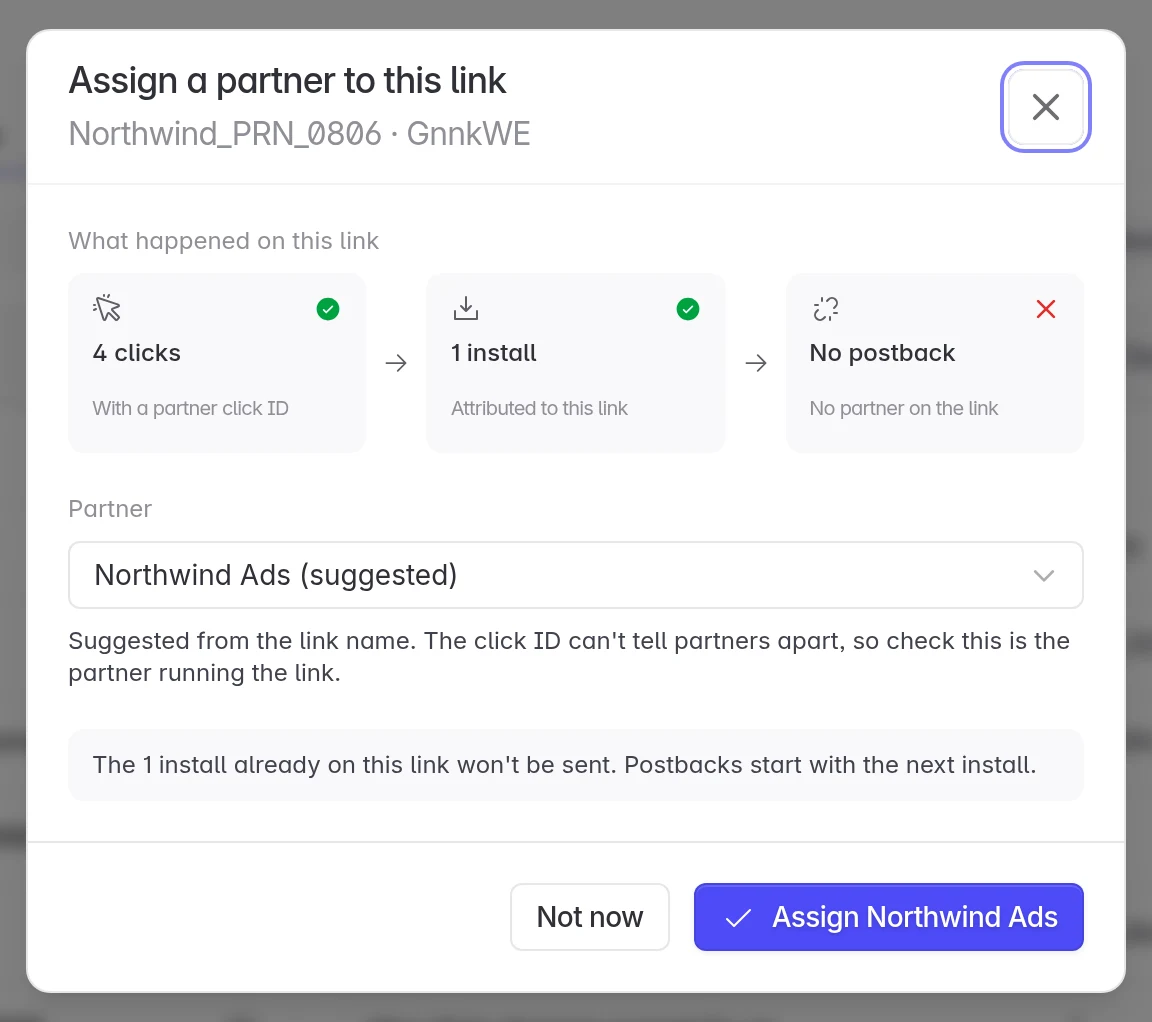
Postbacks start with the next install. Installs already on the link are not sent to the partner.
Only partners you have connected are listed. Account admins and members see the notice.
Troubleshooting
The Display ID is already taken. Display IDs are unique within a project. Pick another one, or leave it empty for a random ID.
The link opens the store even though the app is installed. Finish deep linking setup for your domain. For in-app browsers such as Instagram, turn on Open in app.
You reached the campaign limit. Contact support@linkrunner.io to raise it.
Your partner says they get no postbacks. The link their offer points at is probably not assigned to them. Check for the notice on App Campaigns and assign the partner.
An install is not credited to the link. Install the app from the link on a test device, then check Testing attribution.
Need help? Contact support@linkrunner.io