

Appearance
Set Up a Website Project
Track your website in Linkrunner, with or without an app.
Create a website project
Start a new project
If you are new to Linkrunner, you reach this screen during onboarding. Otherwise, open the project switcher at the top of the sidebar and click Create Project.
Choose Website
Under What do you want to track?, select Website, then enter your company name, website, and product name. If you also have an app, choose Both and add your store link.
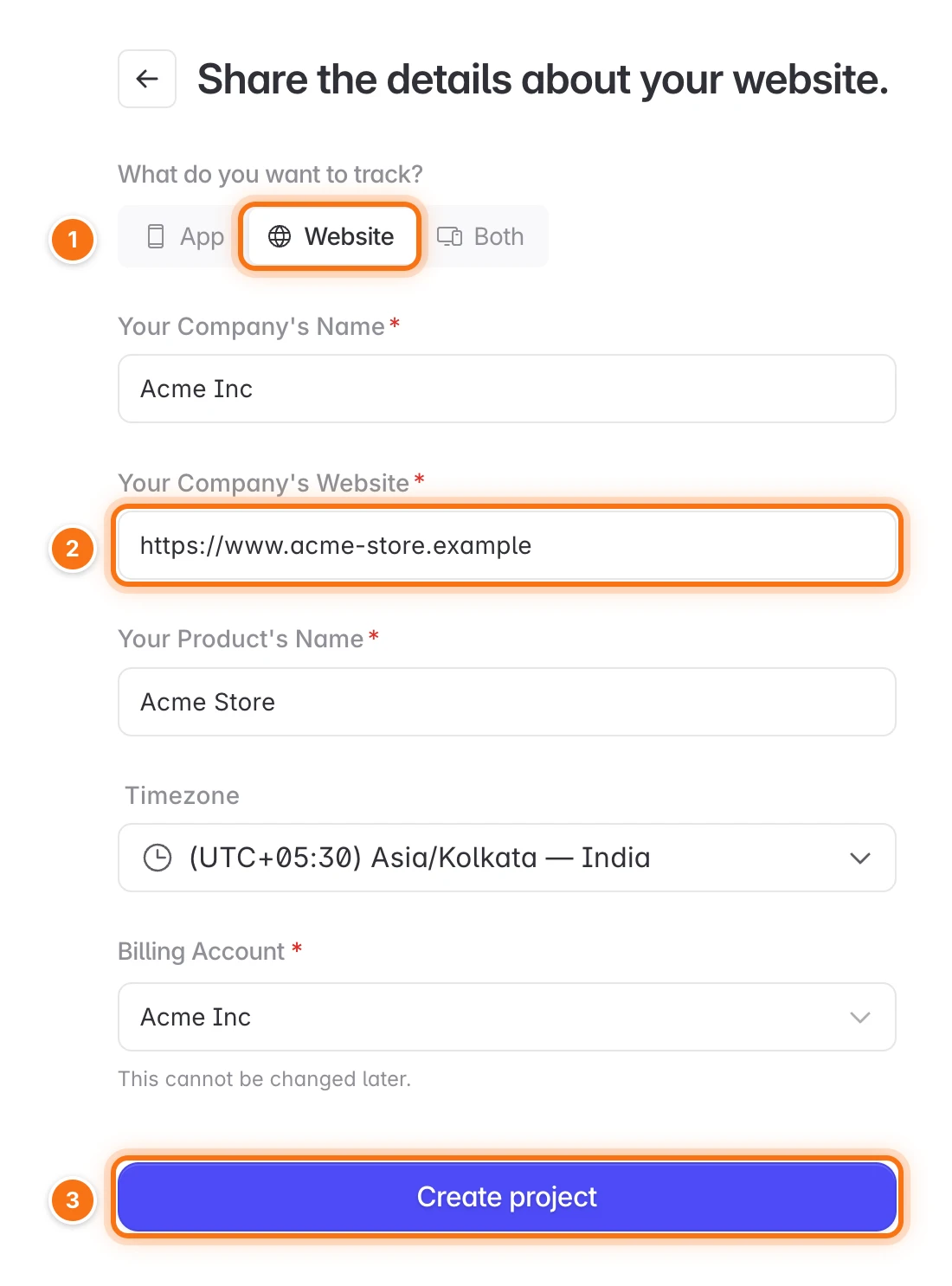
Create the project
Click Create project. Linkrunner opens SDK Testing → Web SDK with your Web SDK snippet ready. Follow Test the Web SDK to install it and check that it works.
Add your app later
Tabs that need an app show a lock. To use them, open any locked tab, click Add app, and search for your app on the App Store or Play Store.
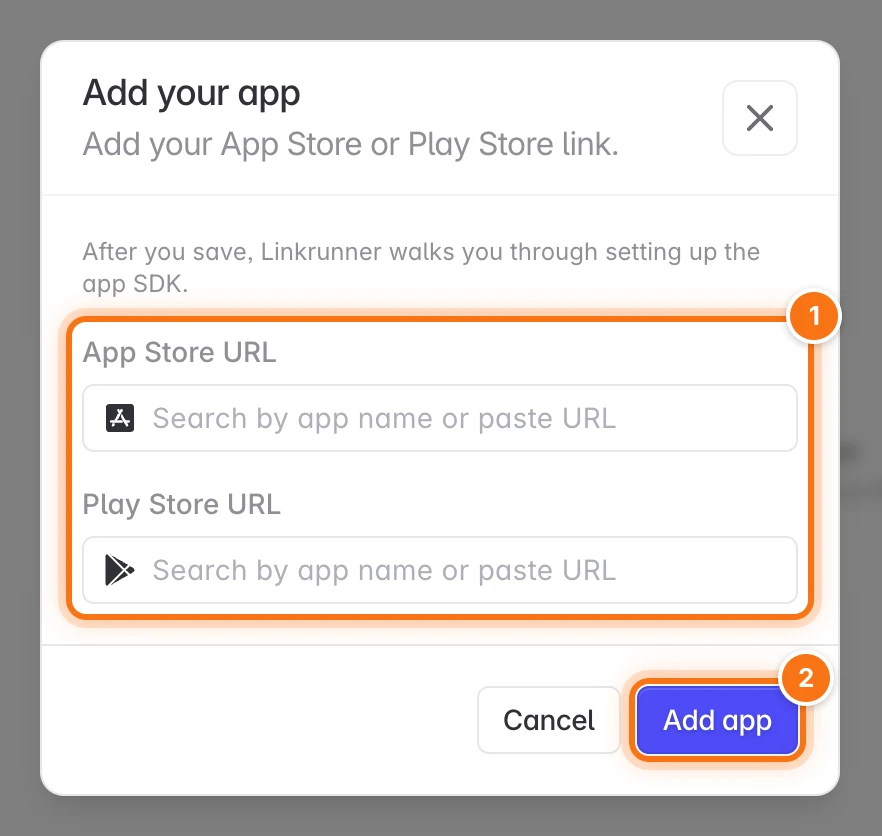
Track your website in an app project
If your project already tracks an app, a project admin can add website tracking to it:
- Go to Settings → Project Details.
- Turn on Web Campaigns. Once Web Campaigns is on, it can't be turned off.
- Click Set up and test in SDK Testing, then follow Test the Web SDK.
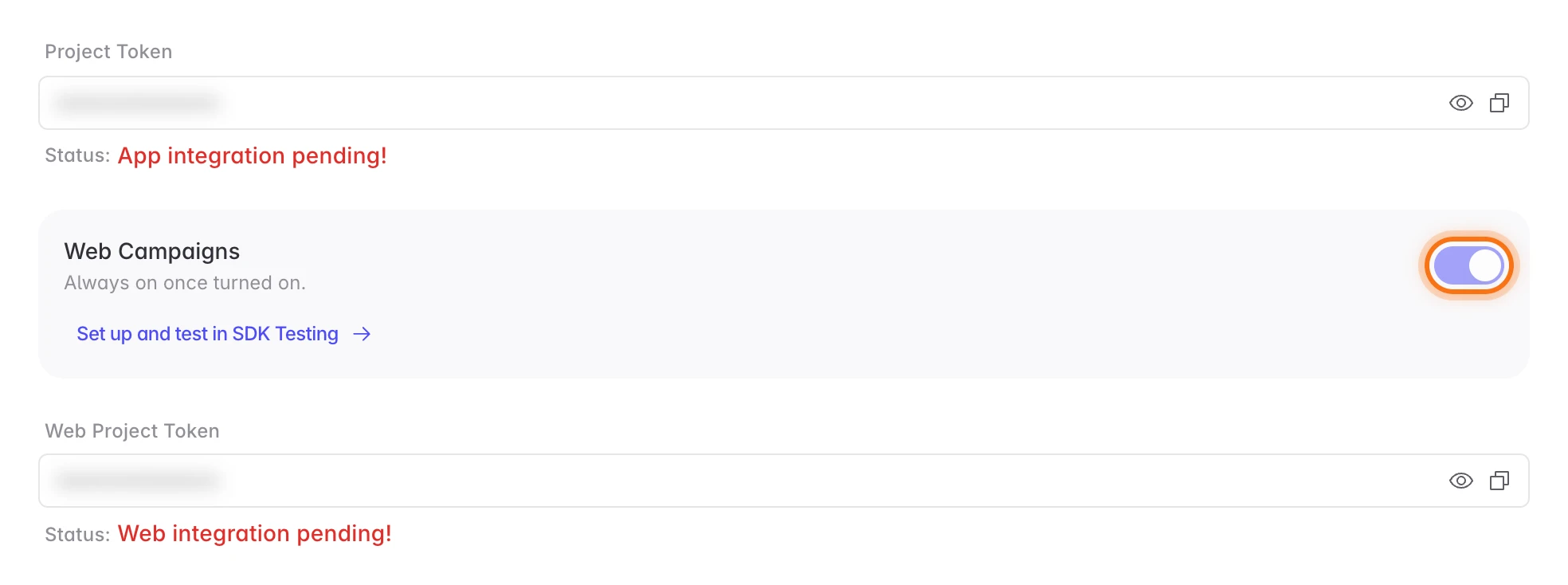
Find your Web project token
Your Web project token is in Settings → Project Details, under Web project token. Use it for the Web SDK. The app SDK's Project token does not work on a website.
Need help? Contact support@linkrunner.io.