

Appearance
iOS SDK
Complete guide for integrating Linkrunner in native iOS apps
Requirements
- iOS 15.0 or higher
- Swift 5.9 or higher
- Xcode 14.0 or higher
Installation
Swift Package Manager
The Linkrunner SDK can be installed via Swift Package Manager (SPM), which is integrated directly into Xcode.
- In Xcode, select File → Add Package Dependencies...
- Enter the following repository URL:
https://github.com/linkrunner-labs/linkrunner-ios.git - Select the version you want to use (we recommend using the latest version)
- Click Add Package
- Choose the library type LinkrunnerStatic
Alternatively, you can add the package dependency to your Package.swift file:
swift
dependencies: [
    .package(url: "https://github.com/linkrunner-labs/linkrunner-ios.git", from: "3.0.2")
]
And add the dependency to your target:
swift
targets: [
    .target(
        name: "YourApp",
        dependencies: [
            .product(name: "Linkrunner", package: "linkrunner-ios")
        ]
    )
]
Importing in Swift
After installation, you can import the SDK in your Swift files:
swift
import LinkrunnerRequired Permissions
App Tracking Transparency
If you plan to use IDFA (Identifier for Advertisers), you need to request permission from the user through App Tracking Transparency. Add the following to your Info.plist file:
xml
<key>NSUserTrackingUsageDescription</key>
<string>This identifier will be used to deliver personalized ads and improve your app experience.</string>
SKAdNetwork Configuration
To enable SKAdNetwork postback copies to be sent to Linkrunner, add the following keys to your Info.plist file:
xml
<key>NSAdvertisingAttributionReportEndpoint</key>
<string>https://linkrunner-skan.com</string>
<key>AttributionCopyEndpoint</key>
<string>https://linkrunner-skan.com</string>
For complete SKAdNetwork integration details, see the SKAdNetwork Integration Guide.
Network Access
The SDK requires network access to communicate with Linkrunner services. Make sure your app has the appropriate permissions for network access.
Initialization (Required)
Initialize the Linkrunner SDK in your app's startup code, typically in your AppDelegate or SceneDelegate:
You can find your project token here.
Note: The initialization method doesn't return any value. To get attribution data and deeplink information, use the getAttributionData method.
swift
import Linkrunner
import SwiftUI

@main
struct MyApp: App {
    init() {
        Task {
            do {
                try await LinkrunnerSDK.shared.initialize(
                    token: "YOUR_PROJECT_TOKEN",
                    secretKey: "YOUR_SECRET_KEY", // Optional: Required for SDK signing
                    keyId: "YOUR_KEY_ID", // Optional: Required for SDK signing
                    debug: true // Optional: Enable debug mode for development (defaults to false)
                )
                print("Linkrunner initialized successfully")
            } catch {
                print("Error initializing Linkrunner:", error)
            }
        }
    }

    var body: some Scene {
        WindowGroup {
            ContentView()
        }
    }
}
SDK Signing Parameters (Optional)
For enhanced security, the LinkRunner SDK requires the following signing parameters during initialization:
secretKey: A unique secret key used for request signing and authenticationkeyId: A unique identifier for the key pair used in the signing processdisableIdfa(optional): Boolean flag to disable IDFA collection (defaults to false)debug(optional): Boolean flag to enable debug mode for development (defaults to false)
You can find your project token, secret key, and key ID here.
User Identification (Required)
Call the signup method as soon as the user is identified — whether through signup or login. This is the moment Linkrunner ties the install (and any future events) to a user identifier.
It is strongly recommended to use the integrated platform's identify function to set a persistent user_id once it becomes available (typically after signup or login).
- Mixpanel - ID Management & User Identification
- PostHog - How User Identification Works
- Amplitude - Identify Users Documentation
If the platform's identifier function is not called, you must provide a user identifier for Mixpanel, PostHog, and Amplitude integration.
- mixpanelDistinctId for Mixpanel
- amplitudeDeviceId for Amplitude
- posthogDistinctId for PostHog
swift
func onSignup() async {
    do {
        let userData = UserData(
            id: "123", // Required: User ID
            name: "John Doe", // Optional
            phone: "9876543210", // Optional
            email: "user@example.com", // Optional
            isFirstTimeUser: isFirstTimeUser,
            userCreatedAt: "2022-01-01T00:00:00Z", // Optional
            mixpanelDistinctId: "mixpanelDistinctId", // Optional - Mixpanel Distinct ID
            amplitudeDeviceId: "amplitudeDeviceId", // Optional - Amplitude Device ID
            posthogDistinctId: "posthogDistinctId" // Optional - PostHog Distinct ID
        )

        try await LinkrunnerSDK.shared.signup(
            userData: userData,
            additionalData: [:] // Optional: Any additional data
        )

        print("Signup successful")
    } catch {
        print("Error during signup:", error)
    }
}
Handle Deeplink
To enable remarketing and reattribution, you need to capture deep links and pass them to the Linkrunner SDK. This allows Linkrunner to detect returning users who open the app via a deep link.
Add the following to your SceneDelegate.swift:
swift
class SceneDelegate: UIResponder, UIWindowSceneDelegate {
    var window: UIWindow?

    // Cold start via Universal Link
    func scene(_ scene: UIScene, willConnectTo session: UISceneSession,
               options connectionOptions: UIScene.ConnectionOptions) {
        // Check if app was launched via a Universal Link
        if let userActivity = connectionOptions.userActivities.first,
           userActivity.activityType == NSUserActivityTypeBrowsingWeb,
           let url = userActivity.webpageURL {
            Task {
                await LinkrunnerSDK.shared.handleDeeplink(url: url.absoluteString)
            }
        }

        // Check if app was launched via a custom URL scheme
        if let urlContext = connectionOptions.urlContexts.first {
            Task {
                await LinkrunnerSDK.shared.handleDeeplink(url: urlContext.url.absoluteString)
            }
        }
    }

    // Warm start — Universal Links (app already running in background)
    func scene(_ scene: UIScene, continue userActivity: NSUserActivity) {
        guard userActivity.activityType == NSUserActivityTypeBrowsingWeb,
              let url = userActivity.webpageURL else { return }

        Task {
            await LinkrunnerSDK.shared.handleDeeplink(url: url.absoluteString)
        }
    }

    // Warm start — Custom URL schemes (app already running in background)
    func scene(_ scene: UIScene, openURLContexts URLContexts: Set<UIOpenURLContext>) {
        guard let url = URLContexts.first?.url else { return }

        Task {
            await LinkrunnerSDK.shared.handleDeeplink(url: url.absoluteString)
        }
    }
}
Linkrunner sends the updated deeplink back after processing. For Linkrunner campaign links, use the returned deeplink as the resolved destination instead of the original tracking URL.
json
{
    "deeplink": "https://app.yourdomain.com/product/123"
}
Getting Attribution Data
To get attribution data and deeplink information for the current installation, use the getAttributionData function:
swift
func getAttributionInfo() async {
    do {
        let attributionData = try await LinkrunnerSDK.shared.getAttributionData()
        print("Attribution data:", attributionData)

        // Attribution data includes:
        // - deeplink: The deep link URL that led to app installation
        // - campaignData: Campaign information
        if let deeplink = attributionData.deeplink {
            print("Deeplink:", deeplink)
            // Handle the deeplink in your app
        }
    } catch {
        print("Error getting attribution data:", error)
    }
}
swift
struct AttributionData: Codable, Sendable {
    let deeplink: String?
    let campaignData: CampaignData
    let attributionSource: String
}

struct CampaignData: Codable, Sendable {
    let id: String
    let name: String
    let adNetwork: String?
    let type: String
    let installedAt: String
    let storeClickAt: String?
    let groupName: String
    let assetName: String
    let assetGroupName: String
}
Setting User Data
Call setUserData each time the app opens and the user is logged in:
setUserData is optional and is not a replacement for signup. Always call signup first as soon as the user is identified (signup or login). Use setUserData afterwards only when additional user details become available later — for example, when the user adds a phone number, email, or completes their profile after identification.
swift
func setUserData() async {
    do {
        let userData = UserData(
            id: "123", // Required: User ID
            name: "John Doe", // Optional
            phone: "9876543210", // Optional
            email: "user@example.com" // Optional
        )

        try await LinkrunnerSDK.shared.setUserData(userData)
        print("User data set successfully")
    } catch {
        print("Error setting user data:", error)
    }
}
Setting CleverTap ID
Use setAdditionalData to add CleverTap ID to the SDK:
swift
func setAdditionalData() async {
    do {
        let integrationData = IntegrationData(
            clevertapId:clevertapId
        )

        try await LinkrunnerSDK.shared.setAdditionalData(integrationData)
        print("CleverTap ID set successfully")
    } catch {
        print("Error setting cleverTap ID:", error)
    }
}
Revenue Tracking
Revenue data is only stored and displayed for attributed users. Make sure you have implemented the .signup function before capturing payments. To attribute a test user, follow the Integration Testing guide. You can verify your events are being captured on the Events Settings page.
Capturing Payments
Track payment information:
swift
func capturePayment() async {
    do {
        try await LinkrunnerSDK.shared.capturePayment(
            amount: 99.99, // Payment amount
            userId: "user123", // User identifier
            paymentId: "payment456", // Optional: Unique payment identifier
            type: .firstPayment, // optional
            status: .completed, // optional
            eventData: [        // Optional: Ecommerce/custom event data
                "content_ids": ["product_123"],
                "content_type": "product",
                "currency": "USD",
                "value": 99.99,
                "num_items": 1,
                "order_id": "order_12345",
                "contents": [
                    [
                        "id": "product_123",
                        "quantity": 1,
                        "item_price": 99.99
                    ]
                ]
            ]
        )
        print("Payment captured successfully")
    } catch {
        print("Error capturing payment:", error)
    }
}
Available Payment Types
swift
public enum PaymentType: String, Sendable {
    case firstPayment = "FIRST_PAYMENT"
    case secondPayment = "SECOND_PAYMENT"
    case walletTopup = "WALLET_TOPUP"
    case fundsWithdrawal = "FUNDS_WITHDRAWAL"
    case subscriptionCreated = "SUBSCRIPTION_CREATED"
    case subscriptionRenewed = "SUBSCRIPTION_RENEWED"
    case oneTime = "ONE_TIME"
    case recurring = "RECURRING"
    case `default` = "DEFAULT"
}
Available Payment Statuses
swift
public enum PaymentStatus: String, Sendable {
    case initiated = "PAYMENT_INITIATED"
    case completed = "PAYMENT_COMPLETED"
    case failed = "PAYMENT_FAILED"
    case cancelled = "PAYMENT_CANCELLED"
}
Removing Payments
Remove payment records (for refunds or cancellations):
swift
func removePayment() async {
    do {
        try await LinkrunnerSDK.shared.removePayment(
            userId: "user123", // User identifier
            paymentId: "payment456" // Optional: Unique payment identifier
        )
        print("Payment removed successfully")
    } catch {
        print("Error removing payment:", error)
    }
}
Tracking Custom Events
Events are only stored and displayed for attributed users. Make sure you have implemented the .signup function before tracking events. To attribute a test user, follow the Integration Testing guide. You can verify your events are being captured on the Events Settings page. For capturing revenue, it is recommended to use the .capturePayment method instead of .trackEvent.
Track custom events in your app:
swift
func trackEvent() async {
    do {
        try await LinkrunnerSDK.shared.trackEvent(
            eventName: "purchase_initiated", // Event name
            eventData: [ // Optional: Event data
                "product_id": "12345",
                "category": "electronics",
                "amount": 99.99 // Include amount as a number for revenue sharing with ad networks like Google and Meta
            ]
        )
        print("Event tracked successfully")
    } catch {
        print("Error tracking event:", error)
    }
}
Revenue Sharing with Ad Networks
To enable revenue sharing with ad networks like Google Ads and Meta, include an amount parameter as a number in your custom event data. This allows the ad networks to optimize campaigns based on the revenue value of conversions:
swift
func trackPurchaseEvent() async {
    do {
        try await LinkrunnerSDK.shared.trackEvent(
            eventName: "purchase_completed",
            eventData: [
                "product_id": "12345",
                "category": "electronics",
                "amount": 149.99 // Revenue amount as a number
            ]
        )
        print("Purchase event with revenue tracked successfully")
    } catch {
        print("Error tracking purchase event:", error)
    }
}
For revenue sharing with ad networks to work properly, ensure the amount parameter is passed as a number (Double or Int), not as a string.
Ecommerce Events
Minimum SDK Version: Ecommerce Event Manager requires
linkrunner-iosv3.8.0 or above. Please ensure your SDK is updated before using this feature.
If you are tracking Ecommerce events to sync with Meta Catalog Sales, you must format your eventData to include Meta's required fields. You also need to map your custom event to the standard commerce event in the Linkrunner Dashboard.
For detailed explanations of the required fields like content_ids, contents, and value, refer to our Meta Commerce Manager documentation.
Add To Cart Example
Use the trackEvent method to send an AddToCart event:
swift
func trackAddToCart() async {
    do {
        try await LinkrunnerSDK.shared.trackEvent(
            eventName: "add_to_cart", // Map this custom event to "AddToCart" in the Linkrunner Dashboard
            eventData: [
                "content_ids": ["product_123"],
                "contents": [
                    [
                        "id": "product_123", // Matches content_ids
                        "quantity": 1,
                        "item_price": 49.99
                    ]
                ],
                "content_type": "product",
                "currency": "USD",
                "value": 49.99,
                "num_items": 1
            ]
        )
        print("Add To Cart event tracked successfully")
    } catch {
        print("Error tracking Add To Cart event:", error)
    }
}
View Content Example
Use the trackEvent method to send a ViewContent event:
swift
func trackViewContent() async {
    do {
        try await LinkrunnerSDK.shared.trackEvent(
            eventName: "view_item", // Map this custom event to "ViewContent" in the Linkrunner Dashboard
            eventData: [
                "content_ids": ["product_123"],
                "contents": [
                    [
                        "id": "product_123", // Matches content_ids
                        "quantity": 1,
                        "item_price": 49.99
                    ]
                ],
                "content_type": "product",
                "currency": "USD",
                "value": 49.99,
                "num_items": 1
            ]
        )
        print("View Content event tracked successfully")
    } catch {
        print("Error tracking View Content event:", error)
    }
}
Payment / Purchase Example
Use the capturePayment method to send a Purchase event containing the ecommerce payload:
swift
func capturePurchase() async {
    do {
        try await LinkrunnerSDK.shared.capturePayment(
            amount: 49.99,
            userId: "user123",
            paymentId: "payment_456",
            type: .firstPayment, // Map this payment type to "Purchase" in the Linkrunner Dashboard
            status: .completed,
            eventData: [
                "content_ids": ["product_123"],
                "contents": [
                    [
                        "id": "product_123", // Matches content_ids
                        "quantity": 1,
                        "item_price": 49.99
                    ]
                ],
                "content_type": "product",
                "currency": "USD",
                "value": 49.99,
                "num_items": 1,
                "order_id": "order_abc123" // Required for Purchase events
            ]
        )
        print("Purchase captured successfully")
    } catch {
        print("Error capturing purchase:", error)
    }
}
Note: For more information on testing and verifying your ecommerce events, please see our Testing Ecommerce Events guide.
Enhanced Privacy Controls
The SDK offers options to enhance user privacy:
swift
// Enable PII (Personally Identifiable Information) hashing
LinkrunnerSDK.shared.enablePIIHashing(true)

// Check if PII hashing is enabled
let isHashingEnabled = LinkrunnerSDK.shared.isPIIHashingEnabled()
When PII hashing is enabled, sensitive user data like name, email, and phone number are hashed using SHA-256 before being sent to Linkrunner servers.
Uninstall Tracking
Before you begin
Here's what you need to know before getting started:
Requirements:
- iOS SDK 3.4.0 and later
- Registering your app with APNs
iOS
Connect APNs with Linkrunner
Apple Developer Portal
Get the required credentials from the Apple Developer Portal:
APNs Authentication Key (p8) and Key ID:
- Go to the Apple Developer Portal.
- Select Identifiers under Certificates, IDs & Profiles.
- Click on the app you want to track uninstalls for. Then, under Capabilities, search for Push Notifications and enable it.
- Under Certificates, IDs & Profiles, select Keys and click on plus (+) icon to create a key. Enable APNs when creating the key and download the key file (p8).
- The Key ID can be found in the Keys tab.
Bundle ID and Team ID:
- Under Identifiers, click on your app and you will see the Bundle ID and Team ID (App ID Prefix).
Linkrunner Dashboard
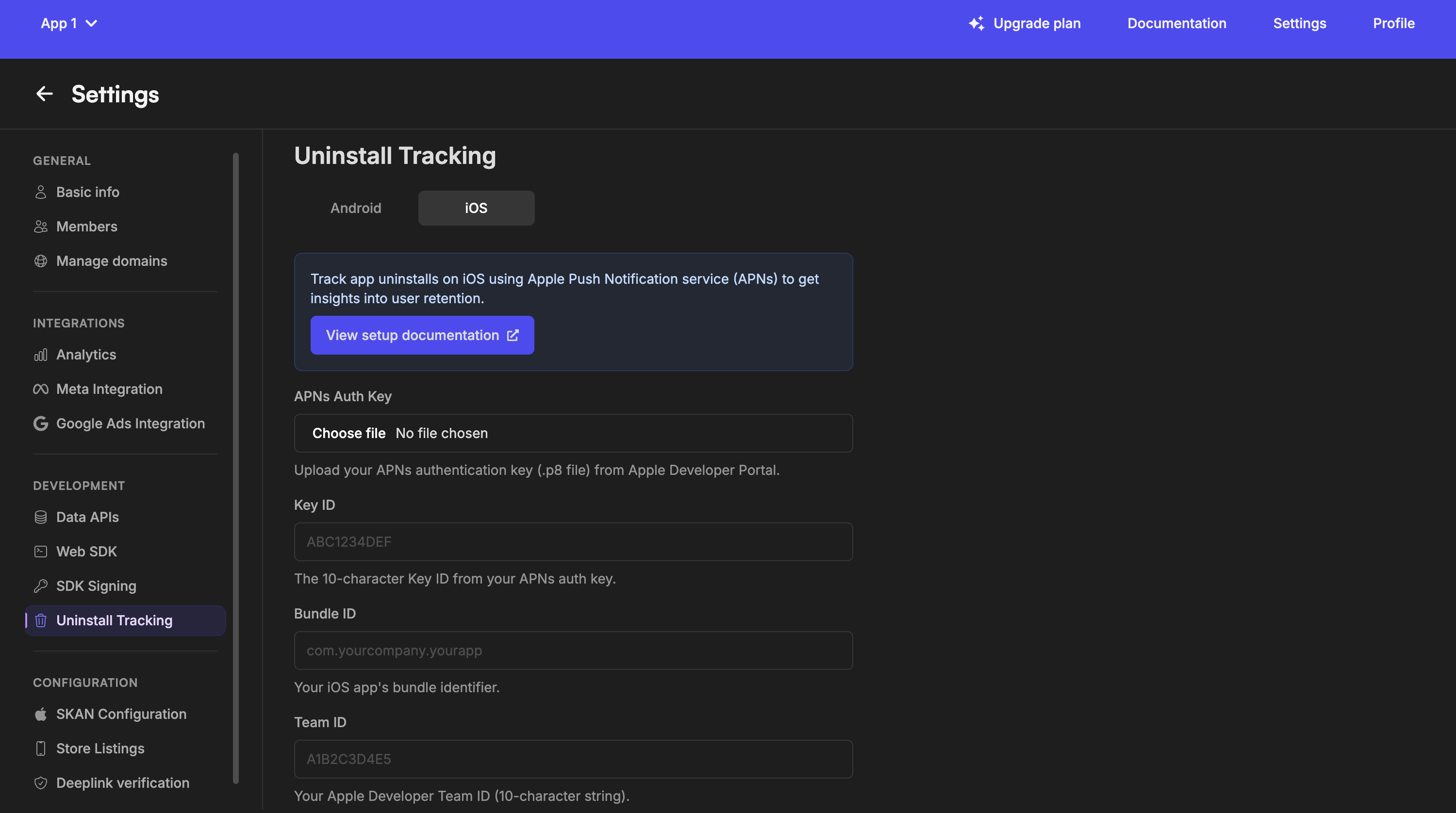
- In Linkrunner, go to Settings > Uninstall Tracking.
- Under the iOS tab, upload the APNs Authentication Key (p8) file and enter the Key ID, Bundle ID and Team ID (App ID Prefix) that you copied from the Apple Developer Portal.
Integrate with Linkrunner SDK
Follow these instructions to integrate APNs with the Linkrunner SDK:
- Set up Push Notifications:
Enable push notifications in your Xcode project by adding the Push Notifications capability.
- Configure your app to provide the device's APNs token to the Linkrunner SDK.
swift
import UIKit
import Linkrunner

class AppDelegate: UIResponder, UIApplicationDelegate {

    func application(_ application: UIApplication, didFinishLaunchingWithOptions launchOptions: [UIApplication.LaunchOptionsKey: Any]?) -> Bool {
        // Request push notification permissions
        UNUserNotificationCenter.current().requestAuthorization(options: [.alert, .badge, .sound]) { granted, error in
            if granted {
                DispatchQueue.main.async {
                    application.registerForRemoteNotifications()
                }
            }
        }
        return true
    }

    // Called when APNs token is received
    func application(_ application: UIApplication, didRegisterForRemoteNotificationsWithDeviceToken deviceToken: Data) {
        let tokenString = deviceToken.map { String(format: "%02.2hhx", $0) }.joined()
        Task {
            try? await LinkrunnerSDK.shared.setPushToken(tokenString)
        }
    }

    func application(_ application: UIApplication, didFailToRegisterForRemoteNotificationsWithError error: Error) {
        print("Failed to register for remote notifications: \(error)")
    }
}
For SwiftUI apps using the new app lifecycle:
swift
import SwiftUI
import Linkrunner

@main
struct MyApp: App {
    @UIApplicationDelegateAdaptor(AppDelegate.self) var appDelegate

    var body: some Scene {
        WindowGroup {
            ContentView()
        }
    }
}

class AppDelegate: NSObject, UIApplicationDelegate {
    func application(_ application: UIApplication, didFinishLaunchingWithOptions launchOptions: [UIApplication.LaunchOptionsKey: Any]?) -> Bool {
        UNUserNotificationCenter.current().requestAuthorization(options: [.alert, .badge, .sound]) { granted, error in
            if granted {
                DispatchQueue.main.async {
                    application.registerForRemoteNotifications()
                }
            }
        }
        return true
    }

    func application(_ application: UIApplication, didRegisterForRemoteNotificationsWithDeviceToken deviceToken: Data) {
        let tokenString = deviceToken.map { String(format: "%02.2hhx", $0) }.joined()
        Task {
            try? await LinkrunnerSDK.shared.setPushToken(tokenString)
        }
    }
}
Function Placement Guide
| Function | Where to Place | When to Call |
|---|---|---|
LinkrunnerSDK.shared.initialize | App initialization | Once when app starts |
LinkrunnerSDK.shared.getAttributionData | Attribution data handling flow | Whenever the attribution data is needed |
LinkrunnerSDK.shared.setAdditionalData | Integration code | When third-party integration IDs are available |
LinkrunnerSDK.shared.signup | Identification flow (signup or login) | Once when the user is identified |
LinkrunnerSDK.shared.setUserData | Authentication logic | Every time app opens with logged-in user |
LinkrunnerSDK.shared.trackEvent | Throughout app | When specific user actions occur |
LinkrunnerSDK.shared.capturePayment | Payment processing | When user makes a payment |
LinkrunnerSDK.shared.removePayment | Refund flow | When payment needs to be removed |
LinkrunnerSDK.shared.setPushToken | Push notification setup | When APNs token is available |
LinkrunnerSDK.shared.handleDeeplink | SceneDelegate deep link entry points | When app is opened via a deep link |
Complete Example
Here's a simplified example showing how to integrate Linkrunner in a SwiftUI iOS app:
You can find your project token here.
swift
import SwiftUI
import Linkrunner

@main
struct MyApp: App {
    init() {
        Task {
            await initializeLinkrunner()
        }
    }

    func initializeLinkrunner() async {
        do {
            try await LinkrunnerSDK.shared.initialize(token: "YOUR_PROJECT_TOKEN")
            print("Linkrunner initialized successfully")
        } catch {
            print("Error initializing Linkrunner:", error)
        }
    }

    var body: some Scene {
        WindowGroup {
            ContentView()
        }
    }
}

struct ContentView: View {
    var body: some View {
        NavigationView {
            VStack(spacing: 20) {
                Text("Linkrunner Demo")
                    .font(.largeTitle)

                Button("Track Event") {
                    Task {
                        await trackCustomEvent()
                    }
                }
                .buttonStyle(.borderedProminent)
            }
            .padding()
        }
    }

    func trackCustomEvent() async {
        do {
            try await LinkrunnerSDK.shared.trackEvent(
                eventName: "button_clicked",
                eventData: ["screen": "home"]
            )
            print("Event tracked successfully")
        } catch {
            print("Error tracking event:", error)
        }
    }
}
Next Steps
Test Your Integration
Validate your setup end-to-end
Set Up Deep Linking
Configure deep links for your app
Support
If you encounter issues during integration, contact us at support@linkrunner.io.