

Appearance
Cordova SDK
Complete guide for integrating Linkrunner in Apache Cordova apps
Installation
Step 1: Add Prerequisites to config.xml
Before adding platforms or installing the plugin, add the following preferences to your app's config.xml:
xml
<widget id="com.your.app" ...>
    <!-- Required: iOS minimum deployment target (Linkrunner requires iOS 15+) -->
    <preference name="deployment-target" value="15.0" />

    <!-- Required: Enable Kotlin support for Android -->
    <preference name="GradlePluginKotlinEnabled" value="true" />
    <preference name="GradlePluginKotlinCodeStyle" value="official" />
</widget>
These preferences must be set before running cordova platform add ios or cordova platform add android. If you've already added platforms, remove and re-add them after updating config.xml:
bash
cordova platform remove ios android
cordova platform add ios android
Step 2: Install the Plugin
bash
cordova plugin add cordova-linkrunnerThis single command handles everything automatically:
- Downloads the package from npm
- Copies native Swift/Kotlin bridge code into your project
- Adds iOS pod dependency (LinkrunnerKit)
- Adds Android gradle dependency (Linkrunner android-sdk)
- Injects iOS Info.plist entries (SKAN endpoints, tracking description)
- Registers the JS module globally as
window.linkrunner
What the plugin auto-configures
The cordova plugin add command automatically configures the following native settings via plugin.xml. No manual editing of Info.plist or build.gradle is required.
iOS (auto-injected into Info.plist):
xml
<key>NSUserTrackingUsageDescription</key>
<string>This identifier will be used to deliver personalized ads to you.</string>

<key>NSAdvertisingAttributionReportEndpoint</key>
<string>https://linkrunner-skan.com</string>

<key>AttributionCopyEndpoint</key>
<string>https://linkrunner-skan.com</string>- LinkrunnerKit pod dependency (iOS 15+)
Android (auto-injected into build.gradle and AndroidManifest.xml):
- Linkrunner SDK gradle dependency
- Kotlin stdlib and coroutines dependencies
android.permission.INTERNETandandroid.permission.ACCESS_NETWORK_STATEpermissions- Backup rules exclusion for SharedPreferences
For complete SKAdNetwork integration details, see the SKAdNetwork Integration Guide.
For detailed Android backup configuration instructions, refer to the Android SDK Backup Configuration.
Initialization (Required)
To initialize the Linkrunner SDK, add this code inside the deviceready event. No import or require is needed — linkrunner is globally available after plugin installation.
You can find your project token here.
Note: The initialization method doesn't return any value. To get attribution data and deeplink information, use the getAttributionData method.
javascript
document.addEventListener('deviceready', function () {

    linkrunner.init({
        token: "YOUR_PROJECT_TOKEN",
        secretKey: "YOUR_SECRET_KEY", // Optional: Required for SDK signing
        keyId: "YOUR_KEY_ID", // Optional: Required for SDK signing
        disableIdfa: false, // Optional: Set to true to disable IDFA collection for iOS (defaults to false)
        debug: true // Optional: Enable debug mode for development (defaults to false)
    }).then(function () {
        console.log("Linkrunner initialized");
    }).catch(function (error) {
        console.error("Linkrunner init failed:", error);
    });

}, false);
SDK Signing Parameters (Optional)
For enhanced security, the Linkrunner SDK accepts the following signing parameters during initialization:
secretKey: A unique secret key used for request signing and authenticationkeyId: A unique identifier for the key pair used in the signing process
You can find your project token, secret key, and key ID here.
User Identification (Required)
Call the signup method as soon as the user is identified — whether through signup or login. This is the moment Linkrunner ties the install (and any future events) to a user identifier.
It is strongly recommended to use the integrated platform's identify function to set a persistent user_id once it becomes available (typically after signup or login).
- Mixpanel - ID Management & User Identification
- PostHog - How User Identification Works
- Amplitude - Identify Users Documentation
If the platform's identifier function is not called, you must provide a user identifier for Mixpanel, PostHog, and Amplitude integration.
- mixpanel_distinct_id for Mixpanel
- posthog_distinct_id for PostHog
- amplitude_device_id for Amplitude
javascript
linkrunner.signup({
    user_data: {
        id: "123", // Required: User ID
        name: "John Doe", // Optional
        phone: "9876543210", // Optional
        email: "user@example.com", // Optional
        // These properties are used to track reinstalls
        user_created_at: "2024-01-01T00:00:00Z", // Optional
        is_first_time_user: true, // Optional
        mixpanel_distinct_id: "mixpanel_distinct_id", // Optional - Mixpanel Distinct ID
        amplitude_device_id: "amplitude_device_id", // Optional - Amplitude User ID
        posthog_distinct_id: "posthog_distinct_id", // Optional - PostHog Distinct ID
        braze_device_id: "braze_device_id", // Optional - Braze Device ID
        ga_app_instance_id: "ga_app_instance_id", // Optional - Google Analytics App Instance ID
        ga_session_id: "ga_session_id", // Optional - Google Analytics Session ID
        netcore_device_guid: "netcore_device_guid" // Optional - Netcore Device GUID
    },
    data: {} // Optional: Any additional data
}).then(function () {
    console.log("Signup successful");
}).catch(function (error) {
    console.error("Error during signup:", error);
});
Handle Deeplink
To enable remarketing and reattribution, you need to capture deep links and pass them to the Linkrunner SDK. This allows Linkrunner to detect returning users who open the app via a deep link.
Cold Start
Cold start deeplinks are automatically captured by the native SDK during init(). The deeplink URL is available via getAttributionData().
Warm Start
For warm start deeplinks (app is already running), use Cordova's handleOpenURL:
javascript
// Initialize SDK first
document.addEventListener('deviceready', function () {
    linkrunner.init({ token: "YOUR_PROJECT_TOKEN" });
}, false);

// Handle warm start deeplinks
window.handleOpenURL = function (url) {
    linkrunner.handleDeeplink(url).then(function (data) {
        console.log("Deeplink data:", JSON.stringify(data));

        if (data && data.deeplink) {
            var deeplink = data.deeplink;
            console.log("Navigate to:", deeplink);
        }
    }).catch(function (error) {
        console.error("Deeplink handling failed:", error);
    });
};
Linkrunner sends the updated deeplink back after processing. For Linkrunner campaign links, use the returned deeplink as the resolved destination instead of the original tracking URL.
json
{
    "deeplink": "https://app.yourdomain.com/product/123"
}
Getting Attribution Data
To get attribution data and deeplink information for the current installation, use the getAttributionData function:
javascript
linkrunner.getAttributionData().then(function (attributionData) {
    console.log("Attribution data:", JSON.stringify(attributionData));
}).catch(function (error) {
    console.error("Error getting attribution data:", error);
});
The getAttributionData function returns:
javascript
{
    deeplink: "https://..." | null,
    campaignData: {
        id: "string",
        name: "string",
        type: "string", // "ORGANIC" | "INORGANIC"
        adNetwork: "string" | null, // "META" | "GOOGLE" | null
        installedAt: "string",
        storeClickAt: "string" | null,
        groupName: "string",
        assetName: "string",
        assetGroupName: "string"
    }
}
Setting User Data
Call setUserData each time the app opens and the user is logged in:
setUserData is optional and is not a replacement for signup. Always call signup first as soon as the user is identified (signup or login). Use setUserData afterwards only when additional user details become available later — for example, when the user adds a phone number, email, or completes their profile after identification.
javascript
linkrunner.setUserData({
    id: "123", // Required: User ID
    name: "John Doe", // Optional
    phone: "9876543210", // Optional
    email: "user@example.com", // Optional
    mixpanel_distinct_id: "mixpanel_distinct_id", // Optional - Mixpanel Distinct ID
    amplitude_device_id: "amplitude_device_id", // Optional - Amplitude User ID
    posthog_distinct_id: "posthog_distinct_id" // Optional - PostHog Distinct ID
}).then(function () {
    console.log("User data set successfully");
});
Setting CleverTap ID
Use the setAdditionalData method to set CleverTap ID:
javascript
linkrunner.setAdditionalData({
    clevertapId: "YOUR_CLEVERTAP_USER_ID" // CleverTap user identifier
}).then(function () {
    console.log("Additional data set successfully");
});
Parameters for linkrunner.setAdditionalData
clevertapId: string (optional) - CleverTap user identifier
This method allows you to connect user identities across different analytics and marketing platforms.
Revenue Tracking
Revenue data is only stored and displayed for attributed users. Make sure you have implemented the .signup function before capturing payments. To attribute a test user, follow the Integration Testing guide. You can verify your events are being captured on the Events Settings page.
Capture Payment
Use this method to capture payment information:
javascript
linkrunner.capturePayment({
    amount: 100, // Payment amount
    userId: "user123", // User identifier
    paymentId: "payment456", // Optional: Unique payment identifier
    type: "FIRST_PAYMENT", // Optional: Payment type
    status: "PAYMENT_COMPLETED", // Optional: Payment status
    eventData: { // Optional: Ecommerce/custom event data
        content_ids: ["product_123"],
        content_type: "product",
        currency: "USD",
        value: 99.99,
        num_items: 1,
        order_id: "order_12345",
        contents: [
            {
                id: "product_123",
                quantity: 1,
                item_price: 99.99
            }
        ]
    }
}).then(function () {
    console.log("Payment captured");
});
Parameters for linkrunner.capturePayment
amount: number (required) - The payment amountuserId: string (required) - Identifier for the user making the paymentpaymentId: string (optional) - Unique identifier for the paymenttype: string (optional) - Type of payment. Available options:FIRST_PAYMENT- First payment made by the userSECOND_PAYMENT- Second payment made by the userWALLET_TOPUP- Adding funds to a walletFUNDS_WITHDRAWAL- Withdrawing fundsSUBSCRIPTION_CREATED- New subscription createdSUBSCRIPTION_RENEWED- Subscription renewalONE_TIME- One-time paymentRECURRING- Recurring paymentDEFAULT- Default type (used if not specified)
status: string (optional) - Status of the payment. Available options:PAYMENT_INITIATED- Payment has been initiatedPAYMENT_COMPLETED- Payment completed successfully (default if not specified)PAYMENT_FAILED- Payment attempt failedPAYMENT_CANCELLED- Payment was cancelled
eventData: object (optional) - Key-value pairs for additional event data, including Meta ecommerce properties.
Removing Payments
Remove payment records (for refunds or cancellations):
javascript
linkrunner.removePayment({
    userId: "user123", // User identifier
    paymentId: "payment456" // Optional: Unique payment identifier
}).then(function () {
    console.log("Payment removed");
});
Parameters for linkrunner.removePayment
userId: string (optional) - Identifier for the user whose payment is being removed. If onlyuserIdis provided, all payments for that user will be removed.paymentId: string (optional) - Unique identifier for the payment to be removed
Note: At least one of paymentId or userId must be provided when calling removePayment.
Ecommerce Events
If you are tracking Ecommerce events to sync with Meta Catalog Sales, you must format your eventData to include Meta's required fields. You also need to map your custom event to the standard commerce event in the Linkrunner Dashboard.
For detailed explanations of the required fields like content_ids, contents, and value, refer to our Meta Commerce Manager documentation.
Add To Cart Example
Use the trackEvent method to send an AddToCart event:
javascript
linkrunner.trackEvent(
    "add_to_cart", // Map this custom event to "AddToCart" in the Linkrunner Dashboard
    {
        content_ids: ["product_123"],
        contents: [
            {
                id: "product_123",
                quantity: 1,
                item_price: 49.99
            }
        ],
        content_type: "product",
        currency: "USD",
        value: 49.99,
        num_items: 1
    }
).then(function () {
    console.log("Add To Cart event tracked successfully");
}).catch(function (error) {
    console.error("Error tracking Add To Cart event:", error);
});
View Content Example
Use the trackEvent method to send a ViewContent event:
javascript
linkrunner.trackEvent(
    "view_item", // Map this custom event to "ViewContent" in the Linkrunner Dashboard
    {
        content_ids: ["product_123"],
        contents: [
            {
                id: "product_123",
                quantity: 1,
                item_price: 49.99
            }
        ],
        content_type: "product",
        currency: "USD",
        value: 49.99,
        num_items: 1
    }
).then(function () {
    console.log("View Content event tracked successfully");
}).catch(function (error) {
    console.error("Error tracking View Content event:", error);
});
Payment / Purchase Example
Use the capturePayment method to send a Purchase event containing the ecommerce payload:
javascript
linkrunner.capturePayment({
    amount: 49.99,
    userId: "user123",
    paymentId: "payment_456",
    type: "FIRST_PAYMENT", // Map this payment type to "Purchase" in the Linkrunner Dashboard
    status: "PAYMENT_COMPLETED",
    eventData: {
        content_ids: ["product_123"],
        contents: [
            {
                id: "product_123",
                quantity: 1,
                item_price: 49.99
            }
        ],
        content_type: "product",
        currency: "USD",
        value: 49.99,
        num_items: 1,
        order_id: "order_abc123" // Required for Purchase events
    }
}).then(function () {
    console.log("Purchase captured successfully");
}).catch(function (error) {
    console.error("Error capturing purchase:", error);
});
Note: For more information on testing and verifying your ecommerce events, please see our Testing Ecommerce Events guide.
Tracking Custom Events
Events are only stored and displayed for attributed users. Make sure you have implemented the .signup function before tracking events. To attribute a test user, follow the Integration Testing guide. You can verify your events are being captured on the Events Settings page. For capturing revenue, it is recommended to use the .capturePayment method instead of .trackEvent.
Track custom events in your app:
javascript
linkrunner.trackEvent(
    "purchase_initiated", // Event name
    { product_id: "12345", category: "electronics", amount: 99.99 } // Optional: Event data, include amount as a number for revenue sharing with ad networks like Google and Meta
).then(function () {
    console.log("Event tracked");
});
Revenue Sharing with Ad Networks
To enable revenue sharing with ad networks like Google Ads and Meta, include an amount parameter as a number in your custom event data. This allows the ad networks to optimize campaigns based on the revenue value of conversions:
javascript
linkrunner.trackEvent("purchase_completed", {
    product_id: "12345",
    category: "electronics",
    amount: 149.99 // Revenue amount as a number
}).then(function () {
    console.log("Purchase event tracked");
});
For revenue sharing with ad networks to work properly, ensure the amount parameter is passed as a number, not as a string.
Enhanced Privacy Controls
The SDK offers options to enhance user privacy:
javascript
// Enable PII (Personally Identifiable Information) hashing
linkrunner.enablePIIHashing(true);
When PII hashing is enabled, sensitive user data like name, email, and phone number are hashed using SHA-256 before being sent to Linkrunner servers.
Uninstall Tracking
Before you begin
Here's what you need to know before getting started:
Requirements:
- A Cordova push notification plugin (e.g.,
cordova-plugin-push) - Firebase in your Cordova project (Android)
- Registering your app with APNs (iOS)
Android
Connect Firebase Cloud Messaging (FCM) with Linkrunner
FCM HTTP v1 API
To configure FCM HTTP V1 for uninstalls:
Enable the FCM API:
- Go to the FCM console.
- Select a project.
- Go to Project Overview > Project settings.
- Copy the Project ID. This will be required in a later step.
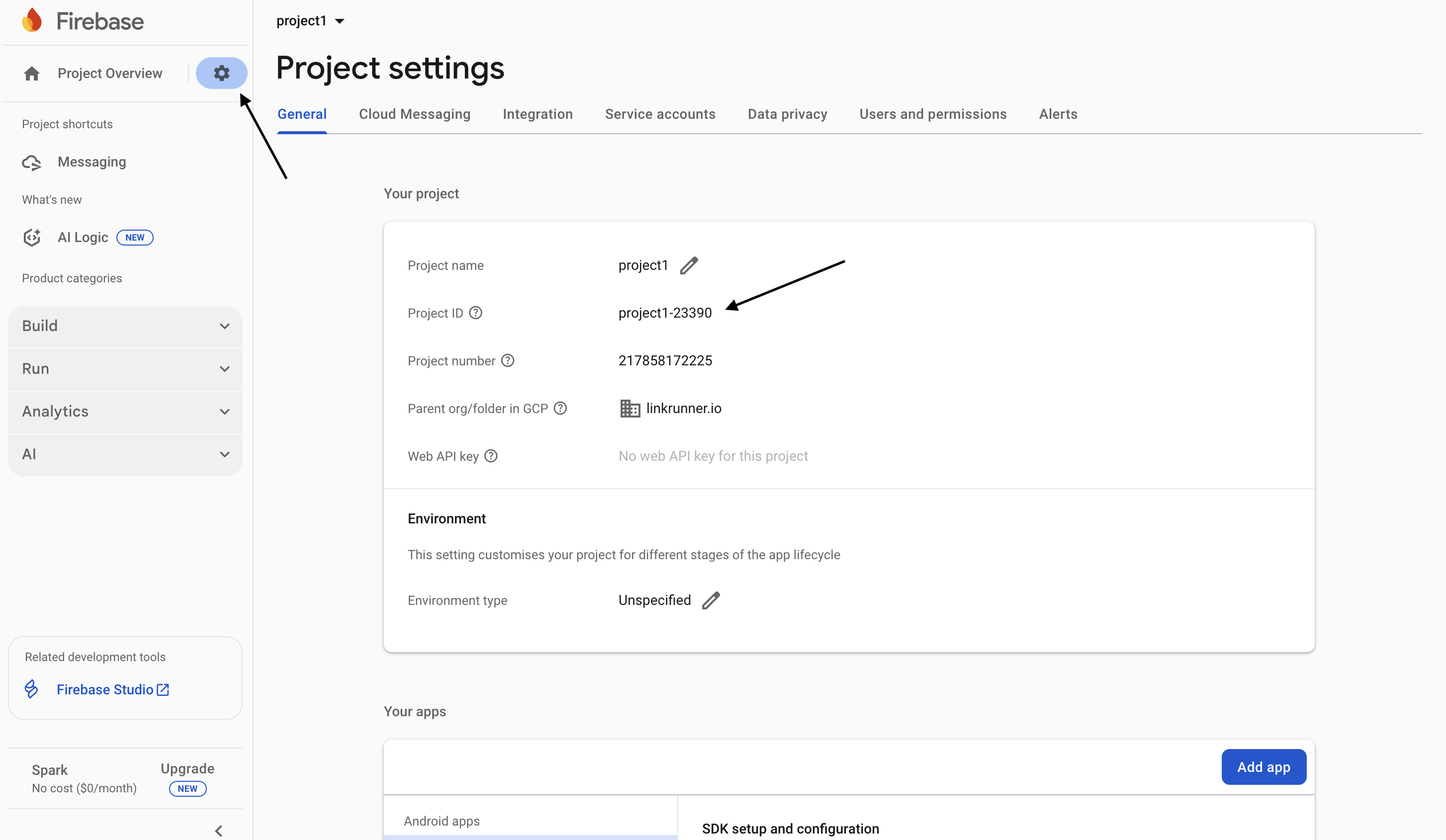
- Go to the Cloud Messaging tab.
- Make sure that Firebase Cloud Messaging API (V1) is set to Enabled.
Create a custom role for Linkrunner Uninstall:
- Go to the Service accounts tab.
- Click Manage service account permissions.
- A new browser tab opens in Google Cloud Platform.
- In the side menu, select Roles.
- Click + Create role.
- Enter the following details:
- Title: Linkrunner Uninstalls
- ID: lr_uninstalls
- Role launch stage: General availability
- Click + Add permissions.
- In Enter property name or value field, enter
cloudmessaging.messages.createand select it from the search results.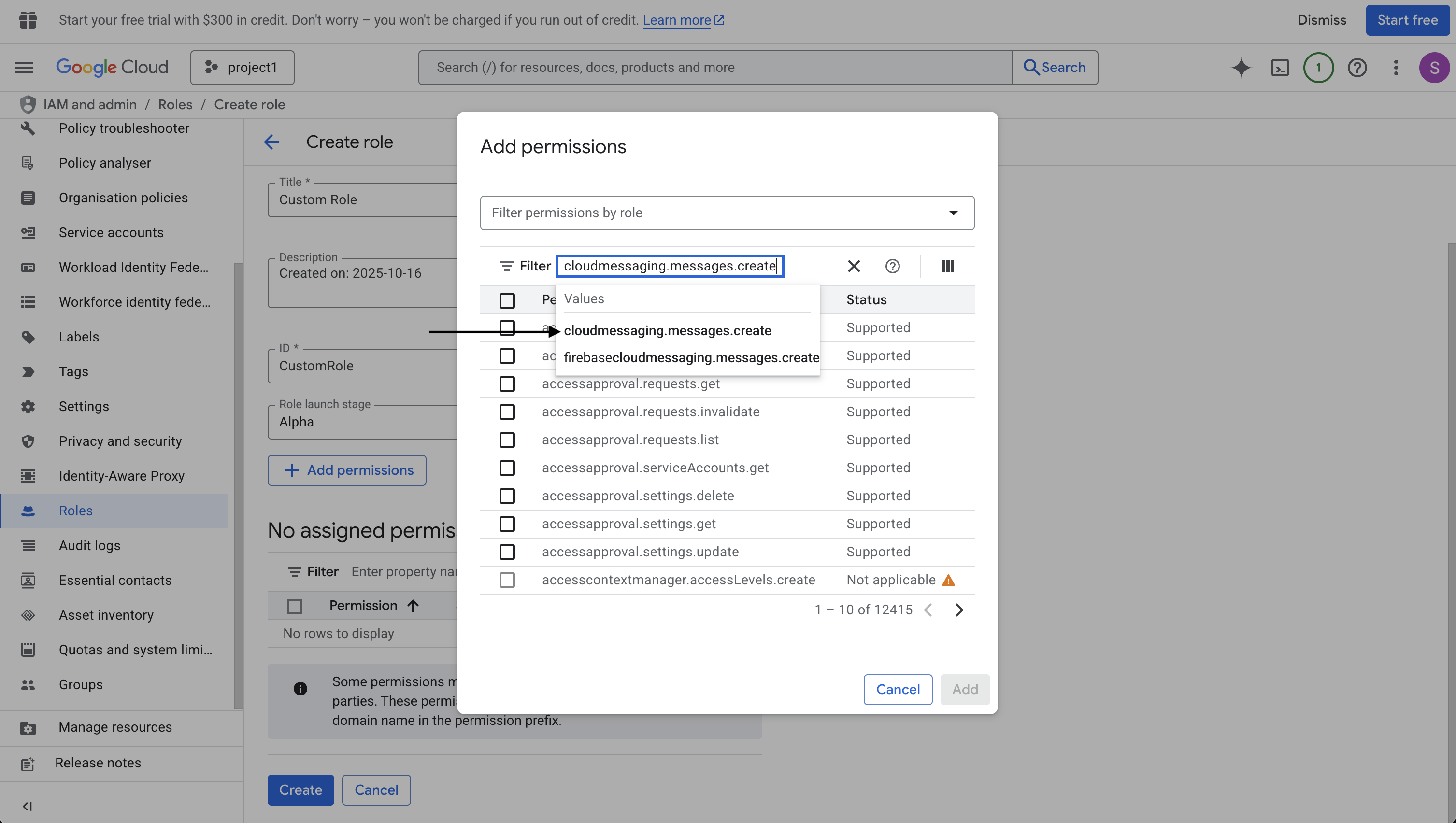
- Check the cloudmessaging.messages.create option and click Add.
- Click Create.
Assign Linkrunner the FCM uninstall role:
- In the side menu, select IAM.
- Open the View by Principals tab.
- Click Grant Access.
- In Add Principals -> New principals field, enter
lr-uninstalls-tracking@lr-uninstalls-tracking.iam.gserviceaccount.com - In Assign Roles -> Select a role field, enter
Linkrunner Uninstallsand select it from the search results. - Click Save.
The Linkrunner service account has been assigned the role of Linkrunner Uninstalls.
Linkrunner Dashboard
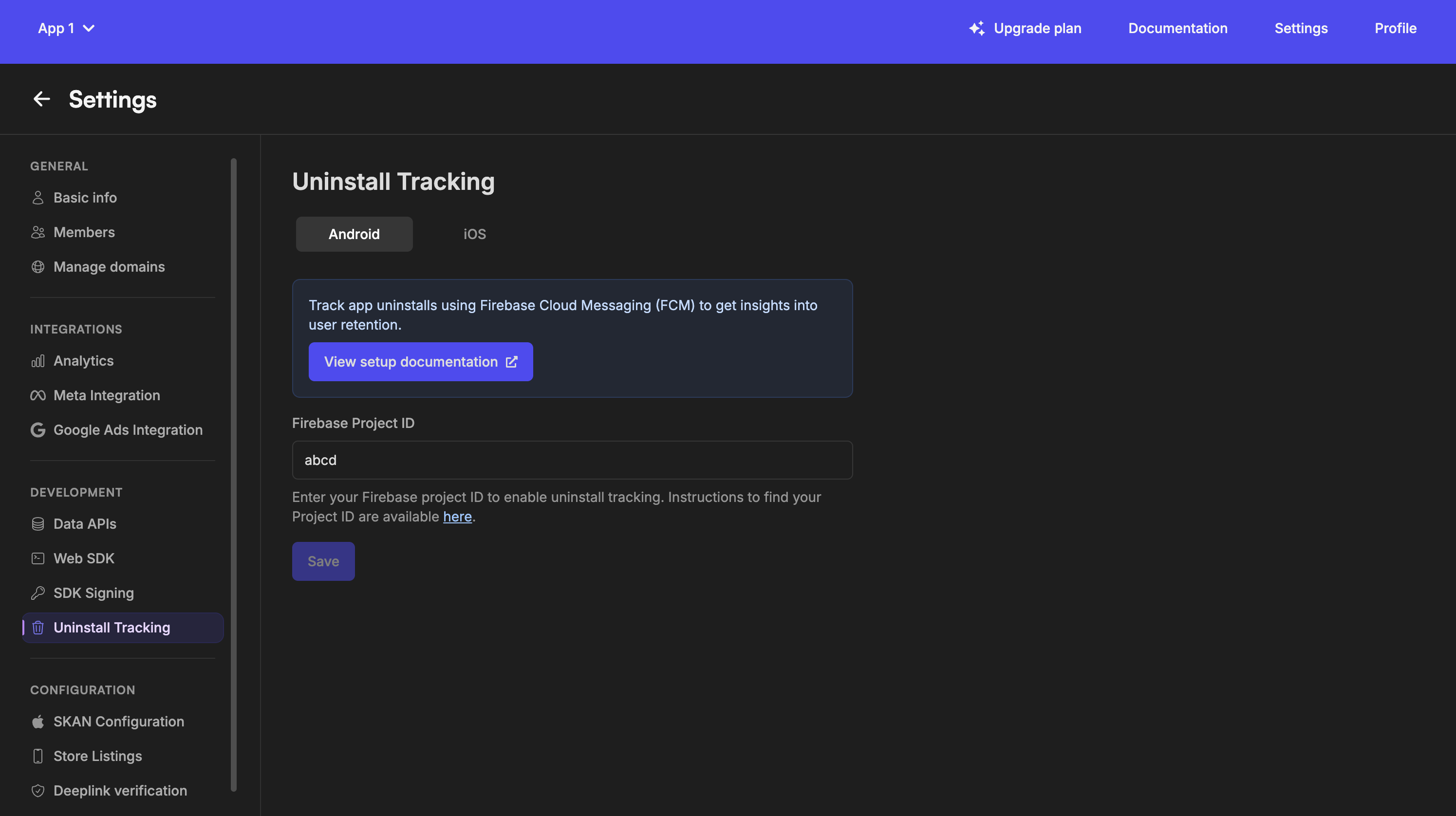
- In Linkrunner, go to Settings > Uninstall Tracking.
- Under the Android tab, enter the Firebase Project ID that you copied initially and click Save.
Integrate with Linkrunner SDK
Follow these instructions to integrate FCM with the Linkrunner SDK:
- Set up Push Notifications:
Install a push notification plugin for Cordova. For example, using cordova-plugin-push:
bash
cordova plugin add cordova-plugin-push- Configure your app to provide the device's push token to the Linkrunner SDK.
javascript
var push = PushNotification.init({
    android: {},
    ios: {
        alert: true,
        badge: true,
        sound: true
    }
});

// Send push token to Linkrunner
push.on('registration', function (data) {
    linkrunner.setPushToken(data.registrationId).then(function () {
        console.log("Push token set successfully");
    });
});

// Filter out Linkrunner silent notifications
push.on('notification', function (data) {
    if (data.additionalData && data.additionalData['lr-uninstall-tracking']) {
        // Silent notification for uninstall tracking, ignore
        return;
    }
    // Handle other notifications here
});
Custom implementations of push notification handlers can unintentionally make uninstall push notifications visible to users, disrupting the intended silent experience. To avoid this, ensure your logic checks if the notification contains lr-uninstall-tracking and handles it accordingly, as shown in the code example above.
iOS
Connect APNs with Linkrunner
Apple Developer Portal
Get the required credentials from the Apple Developer Portal:
APNs Authentication Key (p8) and Key ID:
- Go to the Apple Developer Portal.
- Select Identifiers under Certificates, IDs & Profiles.
- Click on the app you want to track uninstalls for. Then, under Capabilities, search for Push Notifications and enable it.
- Under Certificates, IDs & Profiles, select Keys and click on plus (+) icon to create a key. Enable APNs when creating the key and download the key file (p8).
- The Key ID can be found in the Keys tab.
Bundle ID and Team ID:
- Under Identifiers, click on your app and you will see the Bundle ID and Team ID (App ID Prefix).
Linkrunner Dashboard
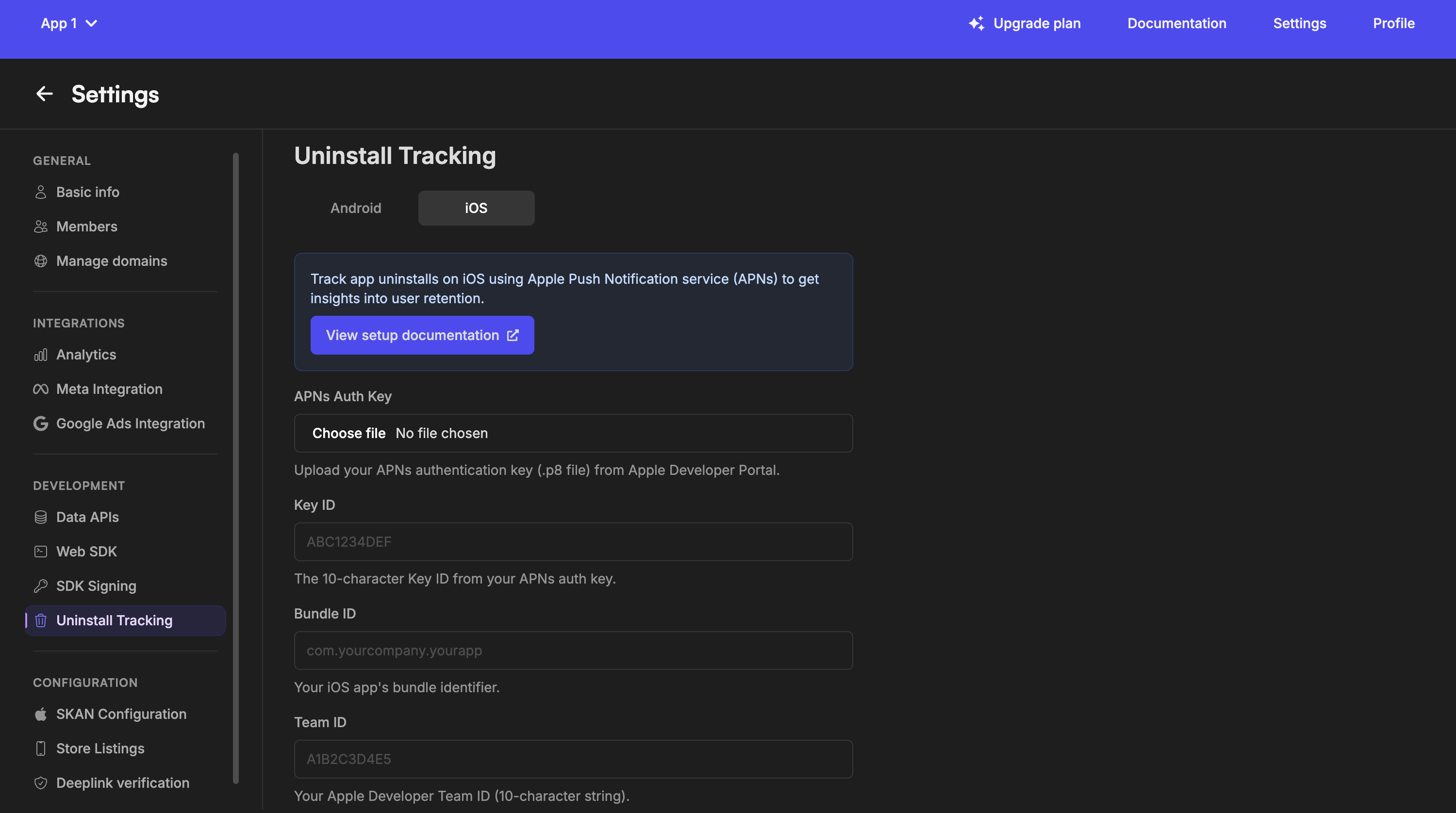
- In Linkrunner, go to Settings > Uninstall Tracking.
- Under the iOS tab, upload the APNs Authentication Key (p8) file and enter the Key ID, Bundle ID and Team ID (App ID Prefix) that you copied from the Apple Developer Portal.
Integrate with Linkrunner SDK
Follow these instructions to integrate APNs with the Linkrunner SDK:
- Set up Push Notifications:
Set up push notifications in your Cordova app using a push notification plugin (e.g., cordova-plugin-push).
- Configure your app to provide the device's APNs token to the Linkrunner SDK.
javascript
var push = PushNotification.init({
    ios: {
        alert: true,
        badge: true,
        sound: true
    }
});

push.on('registration', function (data) {
    // On iOS, this provides the APNs token
    linkrunner.setPushToken(data.registrationId).then(function () {
        console.log("APNs push token set successfully");
    });
});
Function Placement Guide
| Function | Where to Place | When to Call |
|---|---|---|
linkrunner.init | deviceready event handler | Once when app starts |
linkrunner.getAttributionData | Attribution data handling flow | Whenever the attribution data is needed |
linkrunner.setAdditionalData | Integration code | When third-party integration IDs are available |
linkrunner.signup | Identification flow (signup or login) | Once when the user is identified |
linkrunner.setUserData | Authentication logic | Every time app opens with logged-in user |
linkrunner.trackEvent | Throughout app | When specific user actions occur |
linkrunner.capturePayment | Payment processing | When user makes a payment |
linkrunner.removePayment | Refund flow | When payment needs to be removed |
linkrunner.setPushToken | Push notification setup | When push token is available |
linkrunner.handleDeeplink | handleOpenURL handler | When app is opened via a deep link |
Next Steps
Test Your Integration
Validate your setup end-to-end
Set Up Deep Linking
Configure deep links for your app
Support
If you encounter issues during integration, contact us at support@linkrunner.io.