

Appearance
Custom landing pages
Show your own pages before the app or store opens, checked and sped up by Linkrunner, and choose which page each Meta ad or campaign link shows
When someone taps your link inside Instagram, Facebook, LinkedIn or a similar app, Linkrunner shows a short intermediary page before opening your app or the store. You can replace it with your own pages, for example an offer, reviews or a hero image, and use a different page for each Meta ad set, Meta ad or campaign link.
Linkrunner checks every page, fixes what it can, and shows you the result before anyone sees it. Opening the app, picking the right store and crediting installs to your campaigns keep working.
Landing pages are being rolled out project by project. If you don't see Landing Pages in Settings, contact support@linkrunner.io.
When your pages are shown
Your pages replace the Linkrunner page wherever it appears today:
- Linkrunner campaigns with Open in app turned on
- Links opened inside the Instagram, Facebook, LinkedIn, X, Snapchat and TikTok apps, and Threads on iPhone
- Meta web-to-app campaigns, ad sets and ads
Campaigns with their own iOS or Android redirect URL skip the page on phones, and desktop visitors go to your website. Google web-to-app campaigns always keep the Linkrunner page.
Your pages show only on links that use your own domain. Links on a shared Linkrunner domain, such as yourapp.linkrunner.io, keep the Linkrunner page.
How your page differs from the Linkrunner page
| Linkrunner page | Your page | |
|---|---|---|
| Visitors see it | Up to about 2 seconds, then it moves on by itself | Until they tap your button |
| Taps needed to reach the store | Usually 0 | 1 |
| App already installed | Opens straight away | Opens straight away |
| Size | About 45 KB | Up to 500 KB |
Because visitors tap to continue, some will leave without tapping. Try a new page on one ad set or campaign first, then compare installs before you use it everywhere.
Before you upload
- Format: a
.zipwithindex.htmlat the top and every image and font next to it, or a single.htmlfile. Up to 10 MB. - Download button: point it at
{{linkrunner_link}}, or adddata-linkrunner="cta"to it. If you forget, Linkrunner does it for you. - Phones only: design for screens 320 to 430 px wide.
- Up to 50 pages per project.
html
<a href="{{linkrunner_link}}" data-linkrunner="cta">Start running free</a>Don't worry about image sizes, fonts or store links. Linkrunner fixes those for you.
Add and approve a page
Open Landing Pages
Go to Settings → Landing Pages. Your pages are listed with their status, where they show and their size. Click New page or drop a file at the bottom of the list.
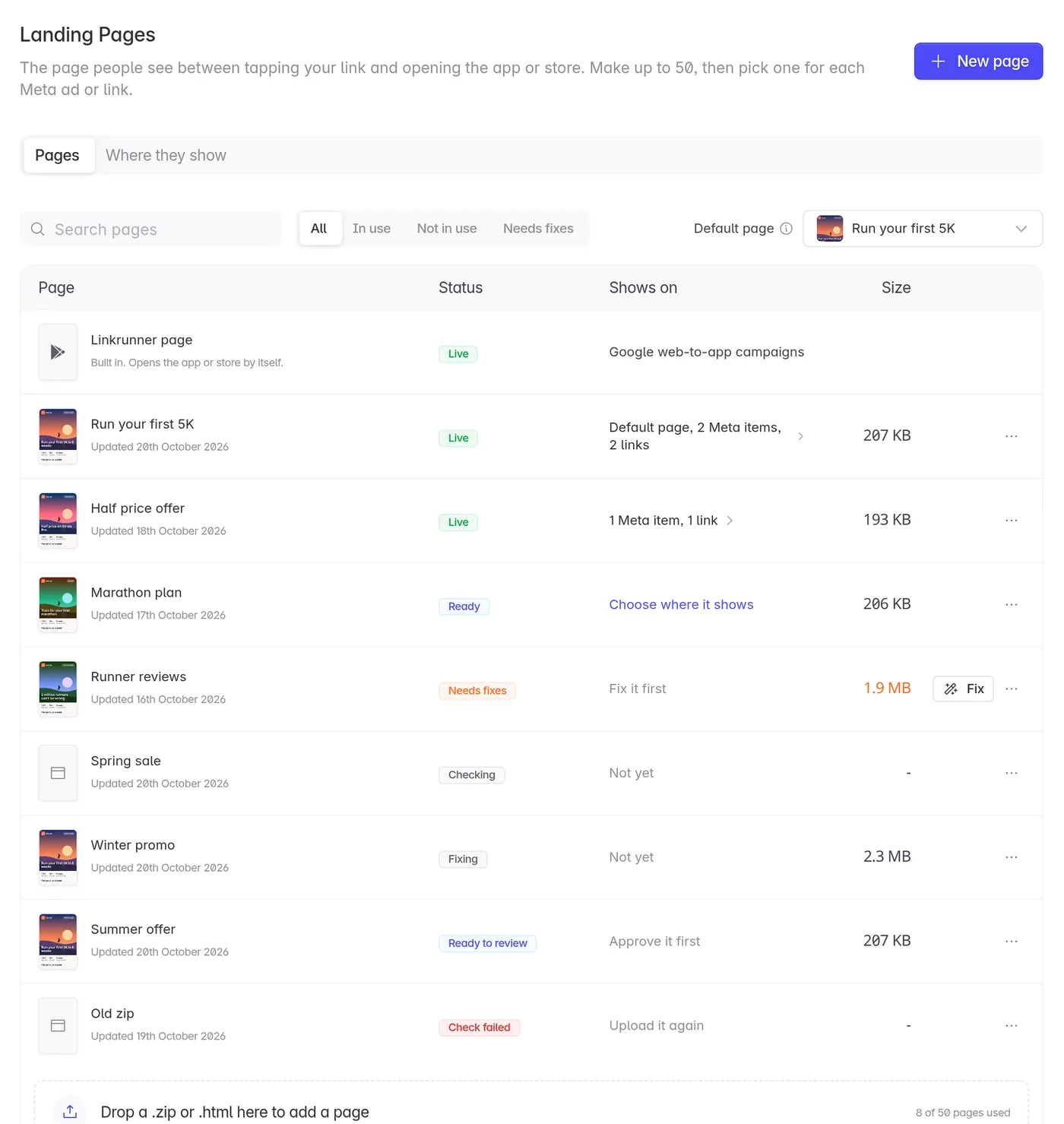
Upload your page
Choose your .zip or .html file.
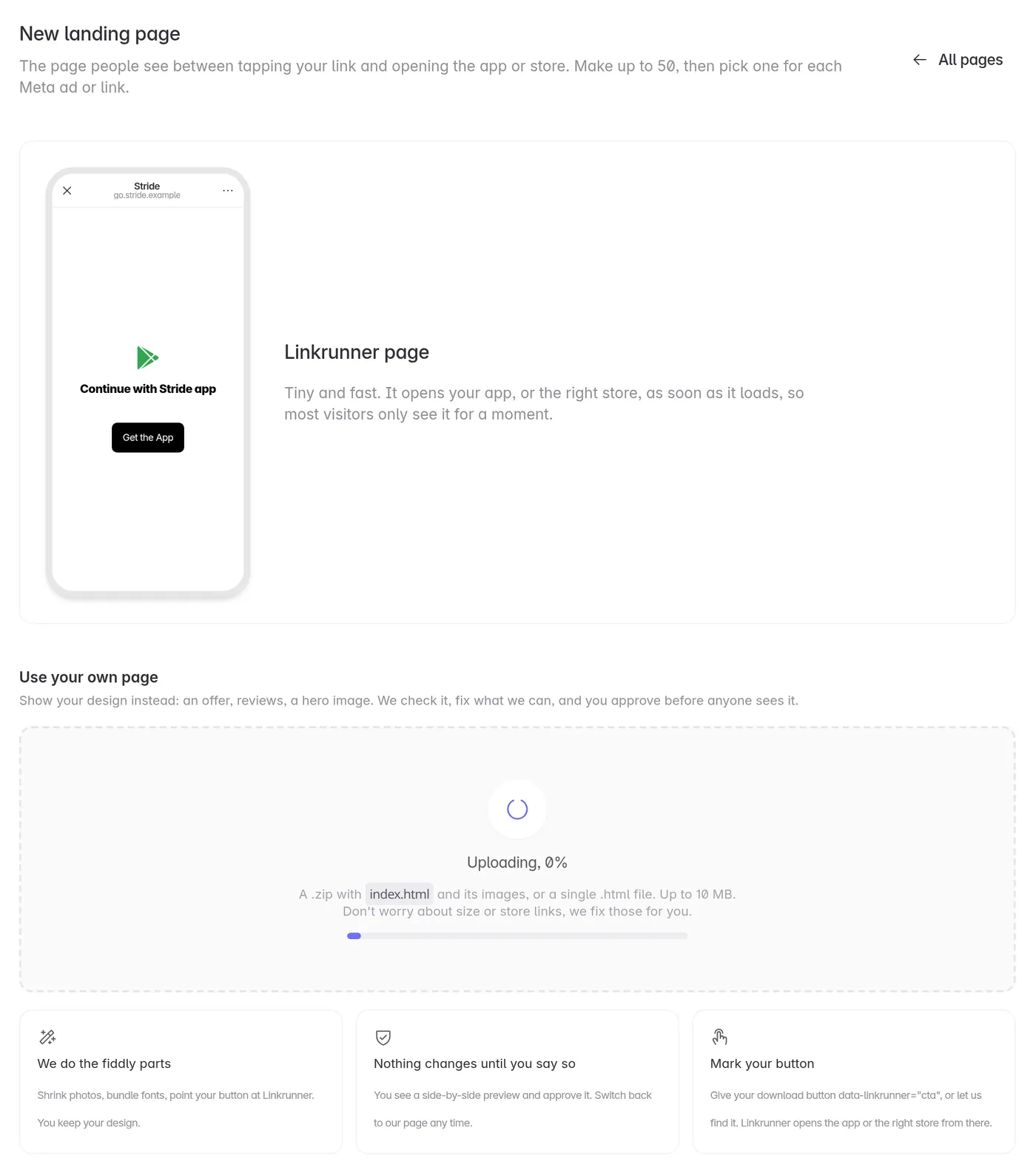
Watch the check
Linkrunner opens your page the way a visitor would: on an Android phone, inside Instagram, on a slow mobile network. It usually takes under a minute.
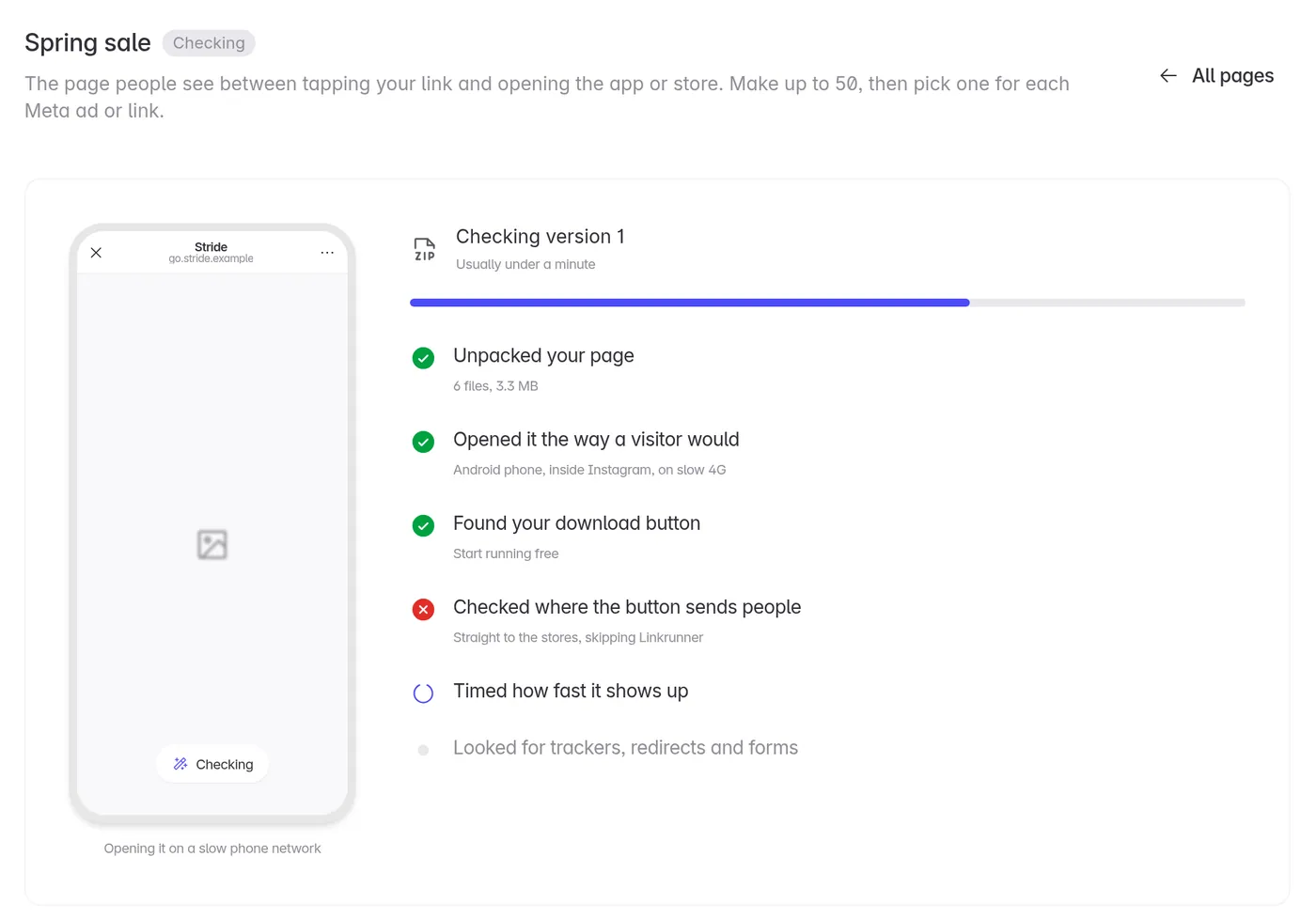
Let Linkrunner fix it
The report lists what needs to change before your page can go live. Click Fix it for me. Choose Required only to make just the changes your page needs, or Everything to also make it faster. Click an item to see which files it touches.
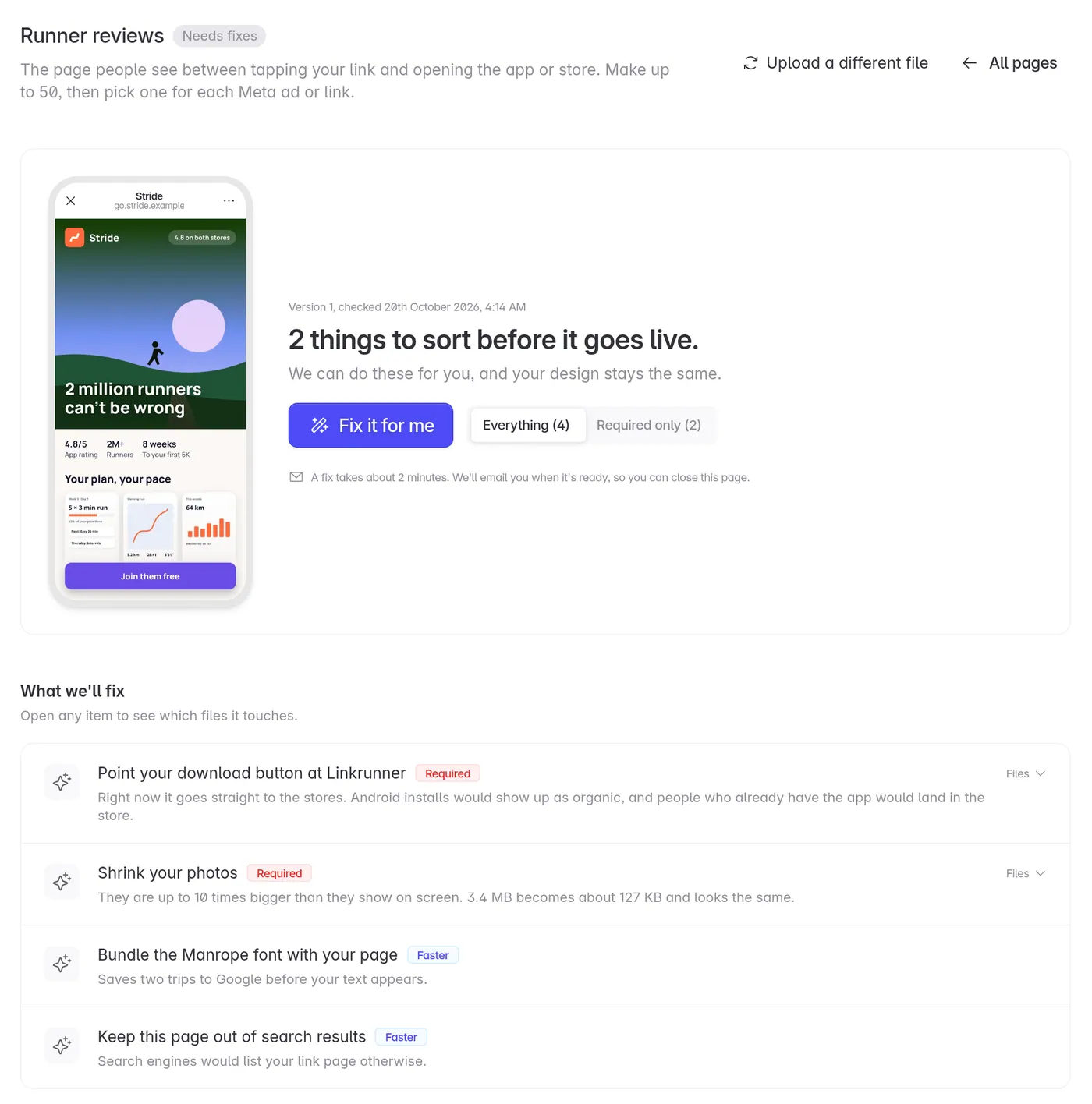
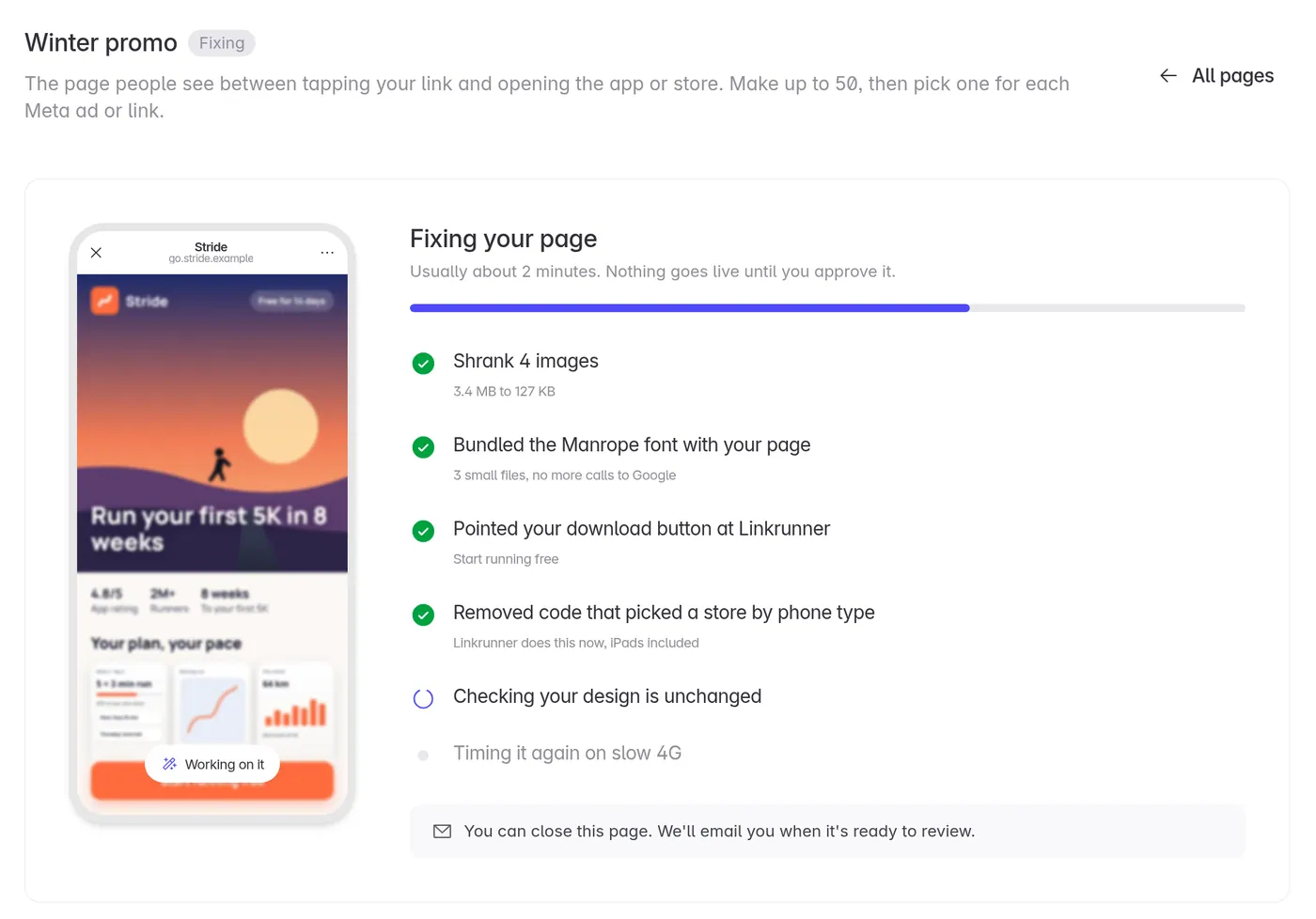
Wait for the email
Fixing takes about 2 minutes. You can leave the page: Linkrunner emails you when it is ready, or if it could not fix the page. Nothing goes live until you approve it.
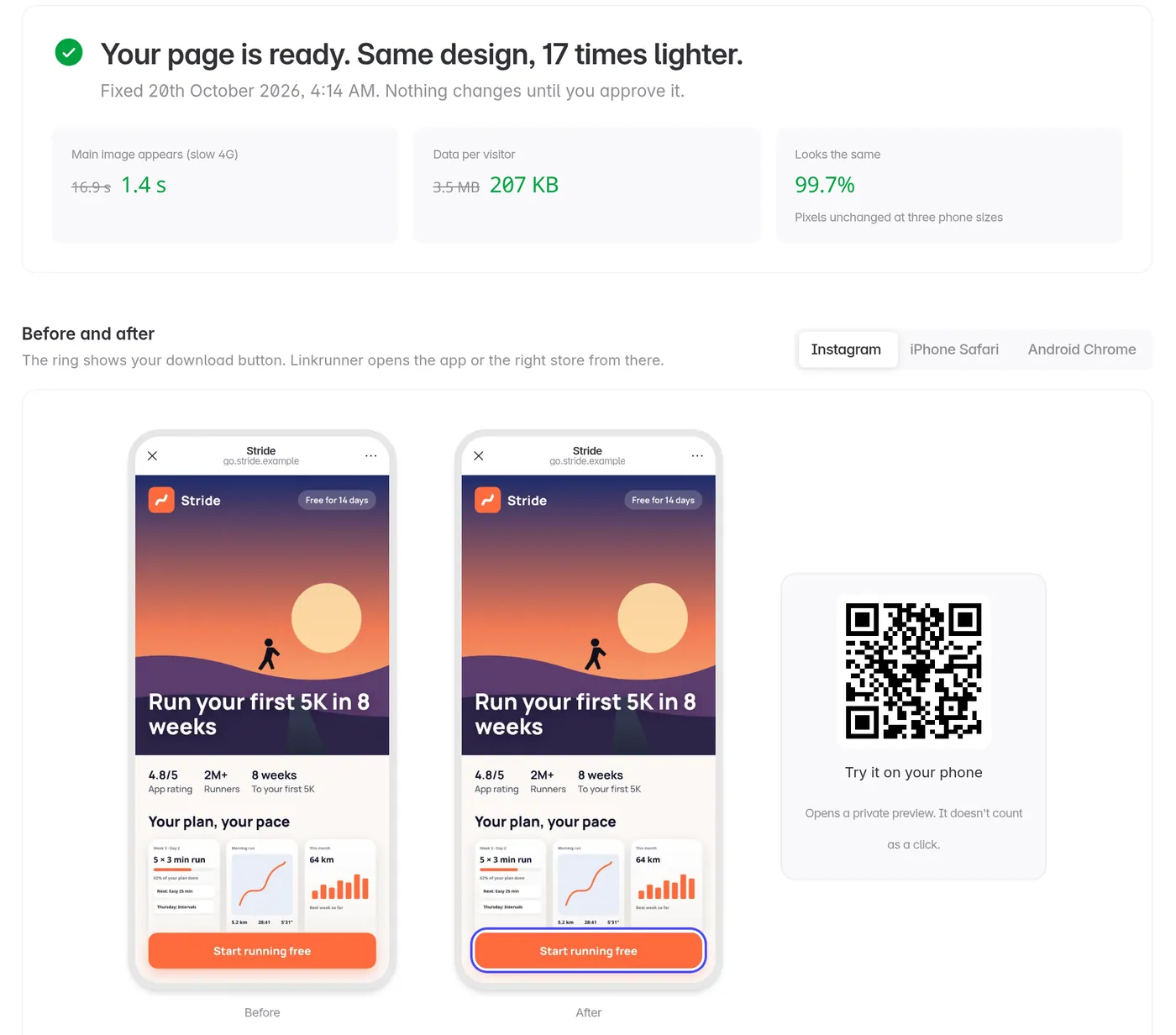
Review the result
Check the summary, then compare your page before and after inside Instagram, iPhone Safari and Android Chrome. The ring marks your download button. Scan the QR code to try the page on your own phone. The preview does not count as a click.
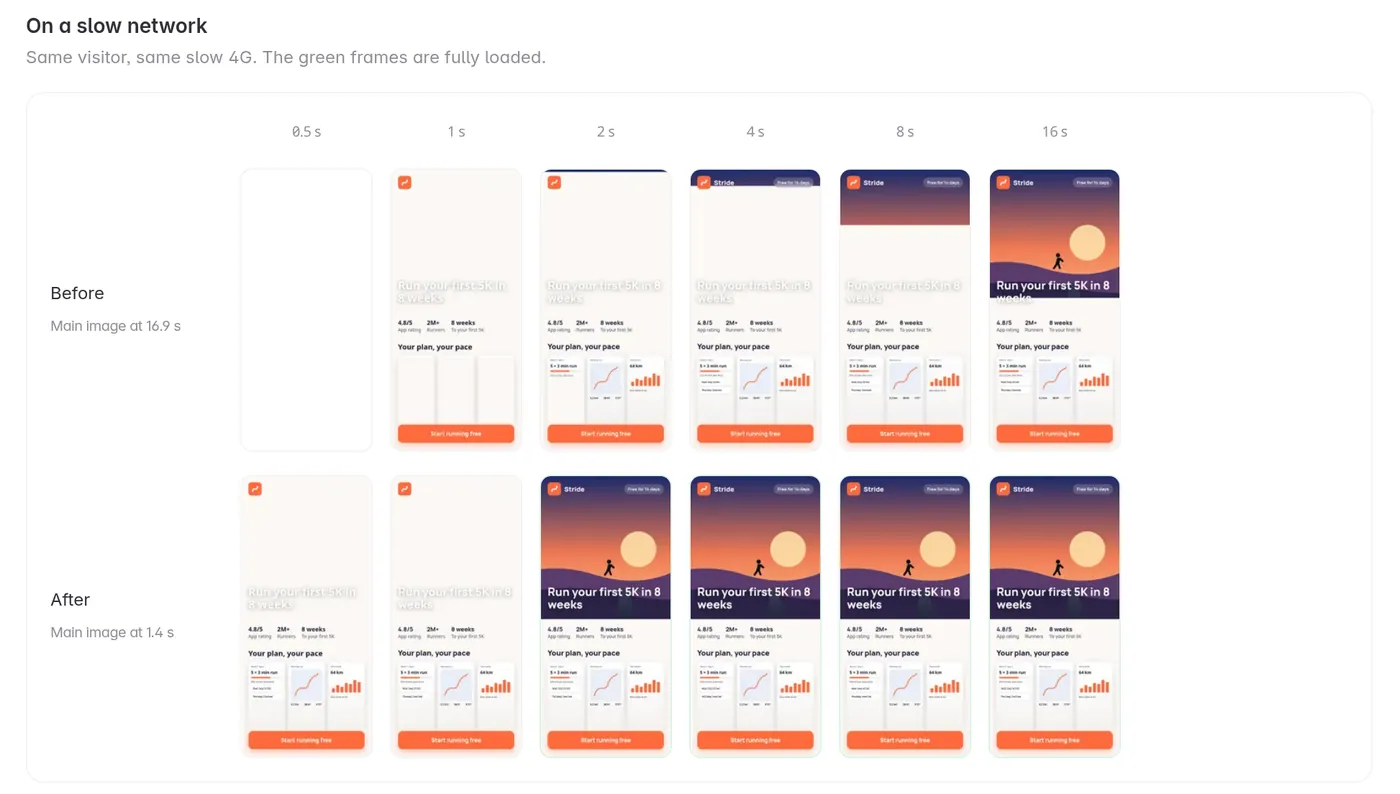
On a slow network shows what a visitor sees second by second, before and after the fixes.
Approve it
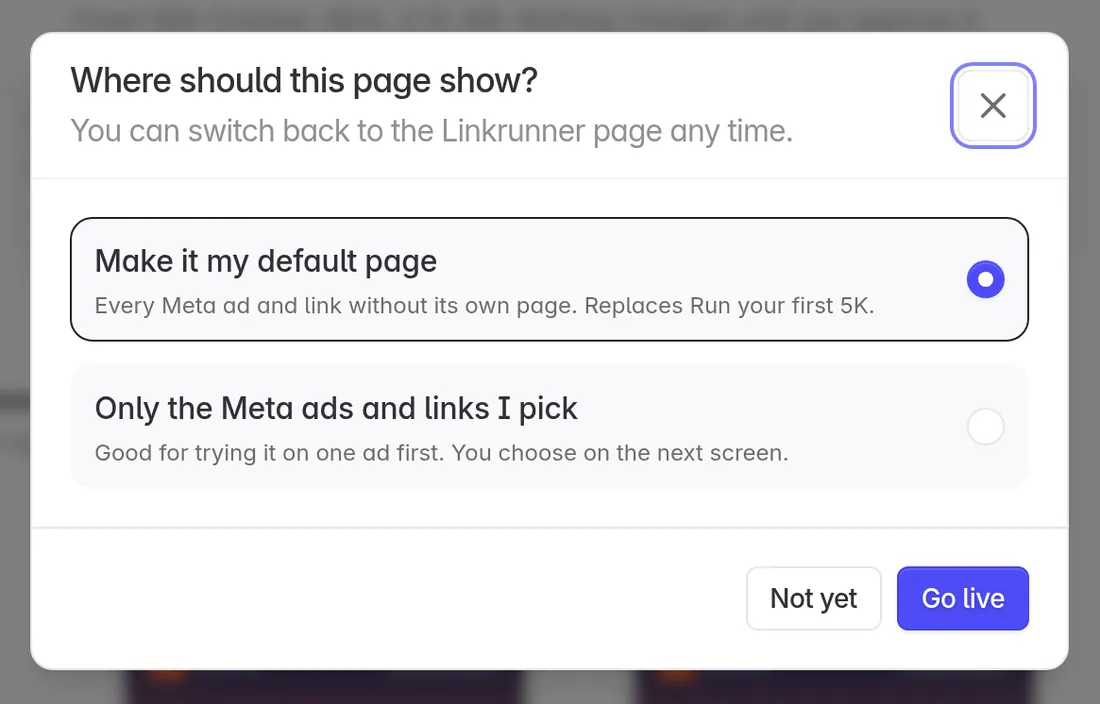
Click Approve and go live. Choose Make it my default page to use it for every Meta ad and link that has no page of its own, or Only the Meta ads and links I pick to choose where it shows yourself. Your links switch over within a minute.
Choose where each page shows
Open the Where they show tab to pick a page for each Meta web-to-app campaign, ad set or ad, and for each Linkrunner campaign link. For each click, Linkrunner uses the most specific choice it finds:
- The ad
- The ad set
- The campaign
- Your default page
- The Linkrunner page, if none of the above is set
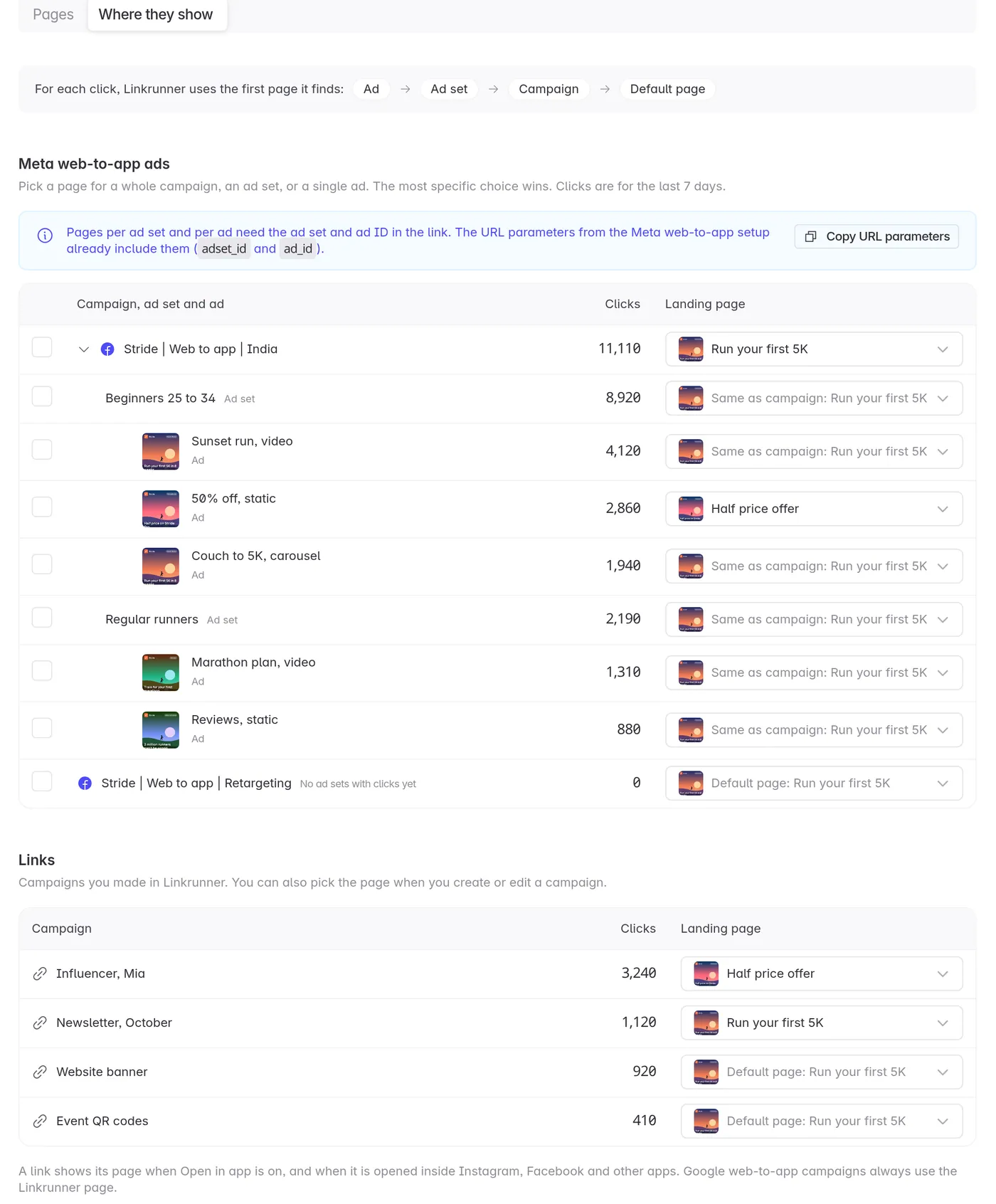
- Meta web-to-app: pick a page for a whole campaign, an ad set or a single ad. Pages for ad sets and ads need
adset_id={{adset.id}}andad_id={{ad.id}}in the ad's URL parameters. The URL parameters in our Meta web-to-app setup already include them, and Copy URL parameters gives them to you again. Withoutad_id, clicks use the ad set's page. - Linkrunner campaigns: pick a page in the Links table, or in the Landing page field under Advanced Options when you create or edit a campaign.
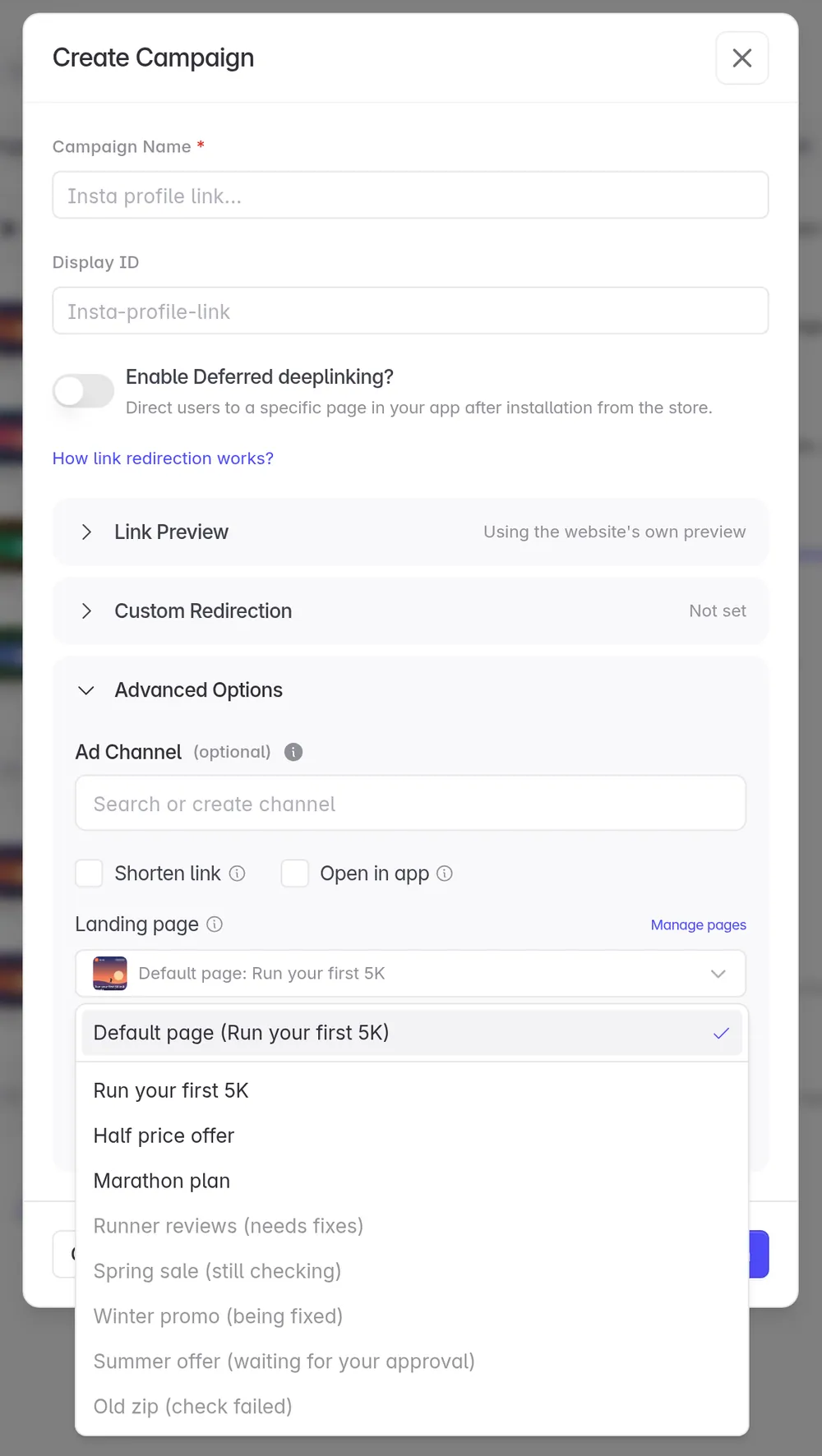
Only pages that passed the checks can be picked. Pages that still need fixes, are being checked or are waiting for your approval are greyed out. A page that is in use cannot be deleted: pick another page for those ads and links first.
What Linkrunner fixes and what needs you
| Linkrunner fixes it | You fix it |
|---|---|
| Images larger than they show on screen | A page still over 500 KB because of its content, such as a video background |
| Fonts loaded from Google Fonts or other servers | Forms that collect personal data, such as a phone number |
| Download buttons that link straight to the App Store or Play Store | A page that needs a login or your own servers |
| Code that picks a store by phone type | Content loaded from other sites, such as embedded videos or chat widgets |
| Code that sends visitors to another page by itself | Analytics and ad pixels. Linkrunner lists the ones it finds |
| Search engines listing the page | Anything that would change your design or wording |
Fixes are designed to keep your design the same. Linkrunner compares screenshots of your page before and after on iPhone and Android and shows you the result before anything goes live.
Change or stop using a page
To change a page, upload a new file for it from its row. Linkrunner checks every new version, and your current version stays live until you approve the new one. To stop using a page, pick another page, or the Linkrunner page, for the ads and links that use it.
Troubleshooting
I don't see Landing Pages in Settings
Landing pages are rolled out per project. Contact support@linkrunner.io and we will check your project.
The report says something needs me
Linkrunner only fixes changes that keep your design the same. The item tells you what to change in your file. Click Upload a different file to add the new version.
My page shows Check failed
Open the page to see the reason. The most common causes are a .zip without index.html at the top and a file over 10 MB. Upload a corrected file.
I can't pick my page for an ad or campaign
Only pages that passed the checks can be picked. Open the page and finish the fix or approval first.
A Meta ad set or ad shows a different page than I picked
Linkrunner uses the ad's page, then the ad set's, then the campaign's, then your default. Check Where they show for a more specific choice. If every ad shows its ad set's page, the ad's URL parameters are missing ad_id={{ad.id}}.
My page shows Fix failed
Open the page to see why the fix could not finish. Click Fix it for me to try again, or upload a corrected file.
There is no QR code, or my links still show the Linkrunner page
Your pages and their previews need a link domain of your own. Links on a shared Linkrunner domain, such as yourapp.linkrunner.io, keep the Linkrunner page. Contact support@linkrunner.io to set up your own domain.
A Google web-to-app campaign shows the Linkrunner page
This is expected. Google web-to-app campaigns always keep the Linkrunner page.
Fewer visitors reach the store than with the Linkrunner page
This is expected: visitors now need to tap. Put your button where it is visible without scrolling, keep the page light, and try it on one ad set or campaign first. To go back, pick the Linkrunner page for it.
A link still shows the Linkrunner page
Check that Open in app is on for the campaign and that it has no iOS or Android redirect URL. Then check that the campaign, or your default page, has a page selected.
Need help? Contact support@linkrunner.io